WebAccess Service
Installation
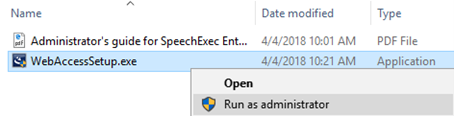
Right-click WebAccessSetup.exe and select "Run as administrator" to get elevated permissions.
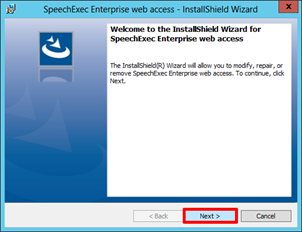
Click on Next
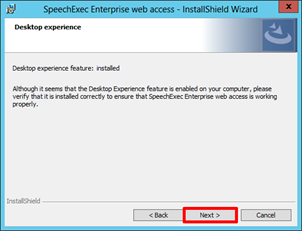
Check for installed desktop experiences is done, click on Next
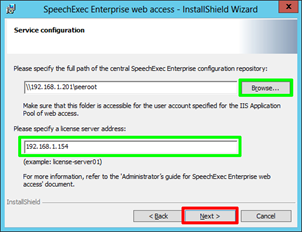
Click on Browse and select the path to the SEE cental configuration folder e.g C:\SEEROOT or select the Network folder if the SEEROOT folder installation is located outside the IIS Server.
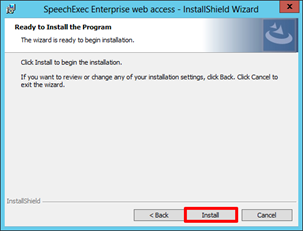
Click on Install
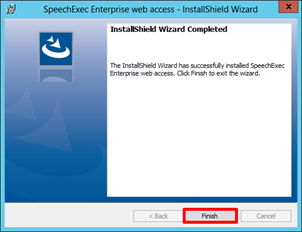
Click on Finish and close the process.
Configuration
Autostart webservice on IIS version 8 or later
In IIS Manager click on the computer name on the Connection pane. Switch to Features View if the view is not activated. Double click Configuration Editor in the Management section of the Features View.
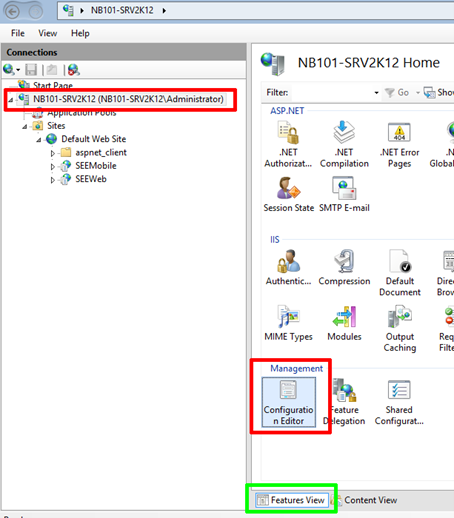
Click the down-arrow next to the Section field, expand system.application Host and then click applicationPools.
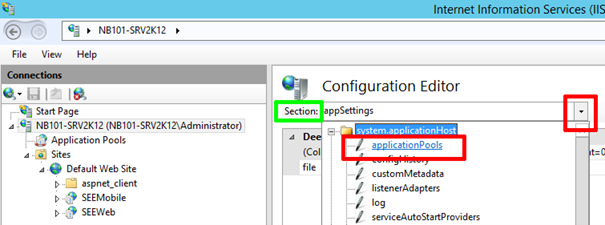
Click Collection and then click Browse … next to the field that shows the count

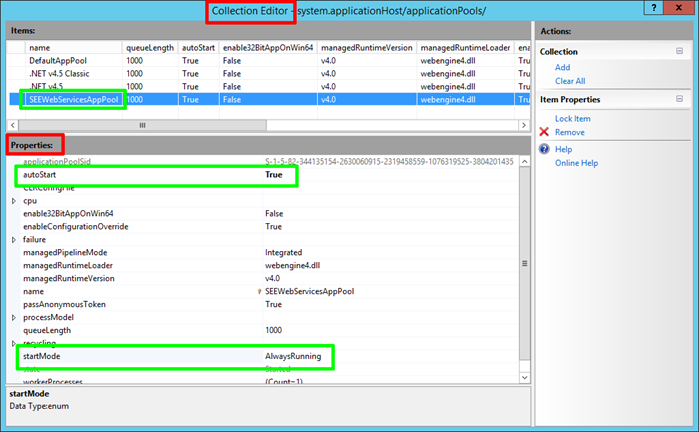
In the Collection Editor, select the application pool for which you want to configure the startMode attribute. In the Properties window at the bottom set the following values: · autoStart attribute to true · startMode attribute to AlwaysRunning
Change user identity for the application pool
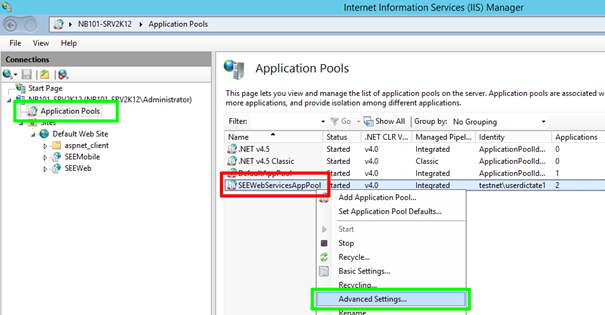
A user with appropriate rights to access SEEROOT and the all the configured dictation folders for users is required to be used as an AppPoolIdentity user. To change the user identity for the new application pool follow the instruction below: On the Application Pools panel in IIS, right-click the newly created SEEWebServicesAppPool and select Advanced Settings.
In the Advanced Settings dialog select Identity and click Browse
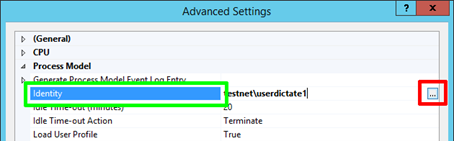
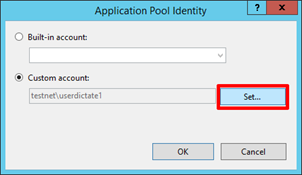
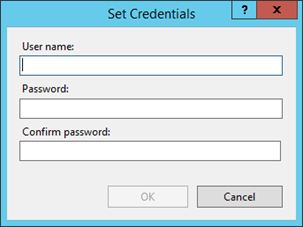
In the Application Pool Identity dialog check Custom account and click SET. In the Set Credential dialog enter your user credentials and click OK.
The User has to have READ and WRITE permissions for the SEEROOT configuration and finished dictation folders.
Activate Windows Authentication for the site
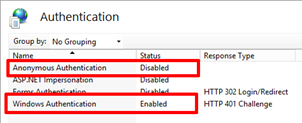
Windows Authentication is mandatory for SpeechExec Enterprise web access to work. To enable Windows Authentication, do the following steps: In the Connection panel on the left, select the Sites – SEEWeb web service. Select the Features View at the bottom of the panel. Double click Authentication in the IIS section of the panel.
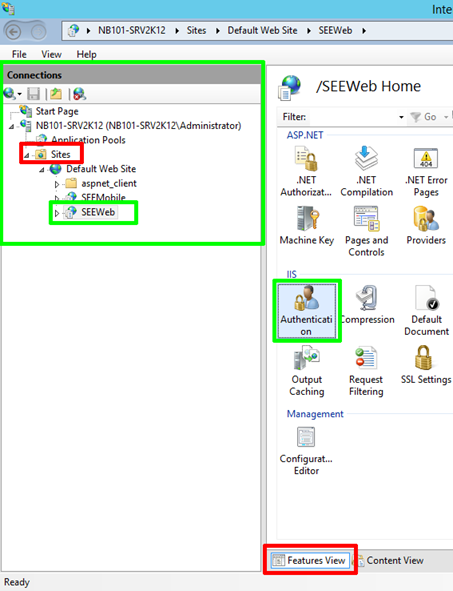
In the Authentication panel do the following: Disable Anonymous Authentication Enable Windows Authentication