Active Directory
Active Directory Structure
Active Directory synchronization requires the manual creation of a special Active Directory hierarchical structure. First of all, the root group of the hierarchy must be created, which is named SEEADRoot. It must have three child groups, which are named SEEAdminsRoot, SEEAllowedAuth, SEEAllowedTrans and SEEAllowedAuthMobile
Important
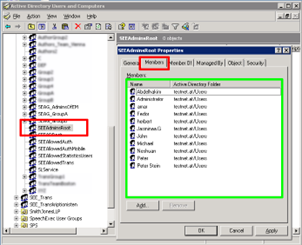
SEEAdminsRoot must have at least one direct Active Directory user member who is going to be an unrestricted administrator of Enterprise Manager. This group can also have subgroups containing Active Directory user members. The name of a subgroup must consist of the following three parts: Alphabetic prefix - it is advised to be a short and meaningful abbreviation, for example, SEAG, which can stand for SpeechExec Admin Group Underscore ("_") separator SpeechExec group name - Active Directory user members contained in the subgroup will be able to log in as group administrators and perform group related administration tasks in the SpeechExec group with the same name
Note
User members and subgroups of the SEEAdminsRoot group must be added manually by the Active Directory administrator. Example: SEEAdminsRoot contains one subgroup, which is named SEAG_TeamVienna and SEAG_TeamBerlin. The user members of this subgroup are UserDictate1 and UserTrans2, who are the group administrators of SEAG_TeamVienna Group. SuperAdmin, PeterVienna and LutzBerlin is a direct user members of SEEAdminsRoot, therefore SuperAdmin is the unrestricted administrator of Enterprise Manager.

Login with Active Directory
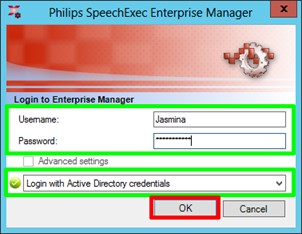
After launching the Enterprise Manager application, select Log in with Active Directory credentials from the combobox, enter the required information in the appropriate fields and click OK. The user and group hierarchy below the SEEAdminsRoot group contains those usere who are authorized to log in to the Enterprise Manager application. The role of an administrator is determined during login by evaluating his Active Directory group membership.
Unrestricted administrator
If a user is a direct member of the SEEAdminsRoot group, that the user will be an unrestricted administrator of the application, which means that he can perform any administration tasks in the Enterprise Manager application. An unrestricted administrator of the application can be the group administrator of any SpeechExec groups at the same time.
Group administrator
If a user is not a direct member of the SEEAdminsRoot group, but a direct member of a subgroup of the SEEAdminsRoot group, that user will be a group administrator of aSpeechExec group with the same name. If the group does not exist in SpeechExec, the user will not be able to start the System Administration application. Group administrators are not allowed to created, delete, rename or copy groups in the System Administration application, however, they can perform any of the following tasks on those groups for whom they are assigned as an administrator:
· assign users to an existing group · delete users from an existing group · copy existing users · move existing users · personalize the default settings for individual end users (authors and transcriptionists) · change group-specific dictation properties
Note: User members and subgroups of the SEEAdminsRoot group must be added manually by the Active Directory administrator
Active directory synchronization
During Active Directory synchronization, the groups and users of Enterprise Manager are aligned to the subgroups and users of the special SEEAllowedAuth and SEEAllowedTrans groups of Active Directory. While the feature is running, the Enterprise Manager application will be locked and other users will not be able to change any settings. Important: The existence of SEEADRoot is mandatory; without this, Active Directory synchronization cannot be executed.
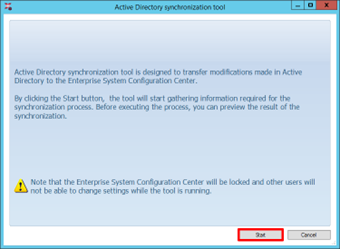
The Active Directory Synchronization feature can be started by clicking on the Allow Active Directory synchronization...

The Active Directory synchronization dialog is displayed. After clicking the Start button, some restrictions take effect to avoid corrupting changes and none of the following operations can be carried out:
creation, deletion and copying of groups and users
modification of group names
moving users to another group
Perform Active Directory synchronization
By clicking this subnode below the Groups and settings node, any appropriate changes in the Active Directory structure will be imported into the Enterprise Manager system.
Note: This subnode is only available if Active Directory synchronization is enabled.
Before executing the synchronization process, in every case you can preview the result of the synchronization. All the changes including the created and deleted groups and their newly added, deleted or moved users are displayed
Important: Those users who are not members of any group are also displayed at this time. The <Users without group> cannot be part of the Active Directory structure and cannot be edited in Enterprise Manager. Neither its settings nor its users, who cannot even start the Enterprise client applications, are allowed to change.
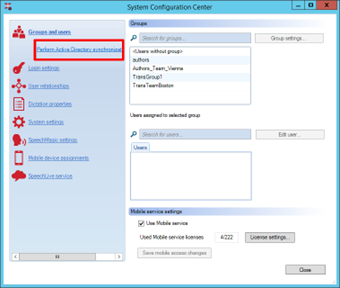
Important NOTE: After any change in the AD structure push the AD synchronization.
The synchronization process can be started by clicking Save.

If you allowed Mobile service access on the Mobile service pane of the Groups and users page, then on the last page of the Active Directory synchronization wizard, you can also see all those authors who have the right to use the Mobile service. These users must be members of a SpeechExec Enterprise author group as well as the SEEAllowedAuthMobile Active Directory group. Otherwise, they are listed in the lower part of the page.
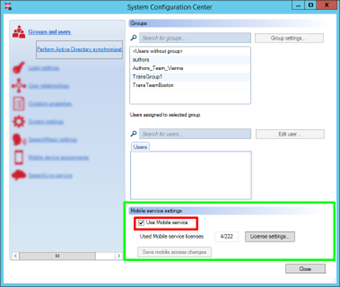

Create groups and users in Active Directory
The subgroups and users of the special SEEAllowedAuth and SEEAllowedTrans groups of Active Directory can be aligned to the groups and users of Enterprise Manager as follows:
Create groups and users in AD...
By clicking this subnode below the Groups and users node, the Active Directory structure will be built up from an already existing SEERoot repository. Here the name of the groups can also be modified by simply clicking on them.
Important: This operation usually needs to be performed only once. Before importing any subsequent changes of the SEERoot repository to the Active Directory structure, both the SEEAllowedAuth and SEEAllowedTrans groups must be manually cleared out.
Note: This subnode is only available if Active Directory synchronization has not been enabled yet.
[Optional: How to customize Active Directory group names]
You can customize the Active Directory group names to your preference. Default Active Directory group names defined by SpeechExec can be modified in the SEESystemOverrides.json file provided in the Enterprise Manager installation directory. The predefined content of the SEESystemOverrides.json file is the following:
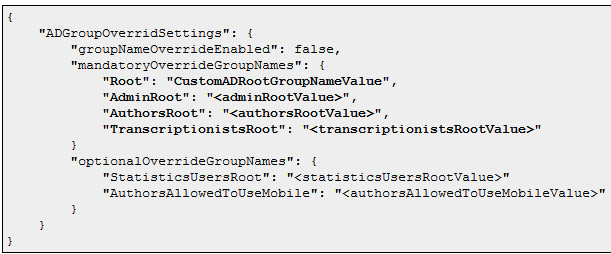
This file contains the mandatory and optional groups, which together form the Active Directory hierarchical structure. Here you can provide the custom group names as the values.
Important
The four mandatory root folders (Root, AdminRoot, AuthorsRoot and TranscriptionistRoot) must not be removed.
The provided custom group names must not contain leading or trailing spaces or any of the following characters: # , + " \ <> ;
Otherwise, the JSON file is declared invalid and Enterprise Manager will not start.
To use the customized Active Directory groups in SpeechExec, enable this option in the JSON file by setting the value of the "groupNameOverrideEnabled" property to true and choose Log in with Active Directory credentials when starting Enterprise Manager.
The synchronization process expects the presence of a known AD group hierarchy
With hard-coded AD group names that cannot be overridden by the end-user pre-created by the end-user’s IT administrator
Note
If Enterprise Manager is installed on multiple computers, the JSON configuration file must be used on all computers. If the JSON file is valid, Enterprise Manager will start successfully and the customized group names will be saved into SEE Root (SpeechExecEnterpriseConfigurationRoot.settings file) automatically, however, asking for your confirmation. Whenever making changes in the JSON file (updating the group names, enabling/disabling the option), the system will ask at start-up whether to overwrite the previously stored settings to the new ones defined in the JSON file.
Note
If Active Directory group names have been saved to SEE Root previously, but the system cannot find the JSON file (because it has been deleted, moved or renamed) or the option is disabled in the JSON file ("groupNameOverrideEnabled" property is set to false), Enterprise Manager and System Administration will not start until resolving the issue (provide a valid JSON file and enable the option) in order to avoid synchronization problems.
Disable Active Directory synchronization
Once you decide to return back to the non-Active Directory environment, you can carry it out anytime by simply disabling the Active Directory synchronization feature on the System settings page.

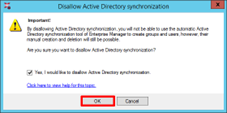
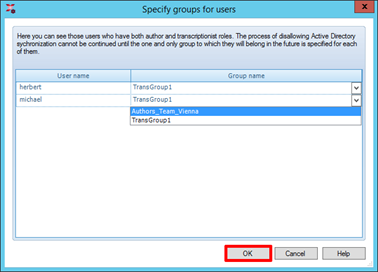
Important: If any user belongs to two Active Directory groups with different roles at the same time, the process of disabling Active Directory synchronization cannot be continued until the one and only group to which they will belong in the future is specified for each of them.