SpeechRecognition Service
Speech Recognition Service automatically transcribes dictations using the Dragon NaturallySpeaking engine. The transcription process is as follows:
When Speech Recognition Service starts, it reads its configuration from the Central Enterprise Repository (SEERoot).
The service initiates Dragon NaturallySpeaking.
Speech Recognition Service takes a dictation from its input folder and hands it over to Dragon NaturallySpeaking for recognition.
The service waits for Dragon NaturallySpeaking to complete the transcription job. Depending on whether the transcription was successful or not, the service does the following:
If the dictation is successfully transcribed, the Speech Recognition Service attaches the recognized text in RTF format to the original dictation and sets dictation state to Correction Pending.
If the transcription process fails then the service removes the dictation from its queue and sets dictation state to Transcription Suspended.
The service takes the next dictation from the input folder.
Create user account for the service
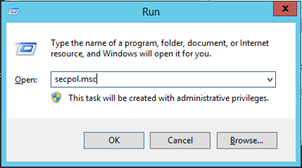
Windows services can be configured to run under the Local System, Local Service, or Network Service accounts, which have a built-in right to log on as a service. Any service that runs under a separate user account must be assigned the right. As the Speech Recognition Service is recommended to run under a separate user account, please follow the steps below before start the installation to make sure the user account for the service is configured properly. From the Start Menu, start Local Security Policy tool (secpol.msc).
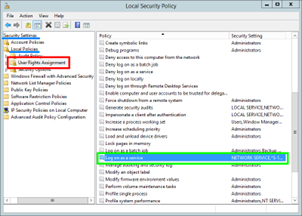
In Security Settings, locate Local Policies - User Rights Assignment.Select the Log on as a service policy and double-click to open its properties.
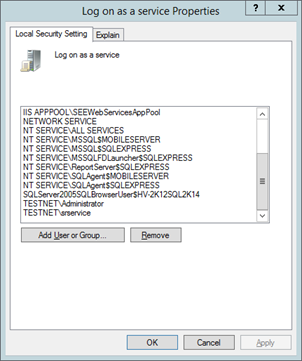
Add the user account you want to use for the Speech Recognition Server – in our example TESTNET\srservice. Add the user account to the local Administrators group, too.
License Server Configuration
Speech Recognition Service requires a separate license depending on the used speech recognition engine to work properly.
For Dragon NaturallySpeaking a ‘Speech recognition service for Dragon’ license is required
For Dragon Server a ‘Speech recognition service for SpeechKit’ license is required
To set the correct path to your License Server, do the following:
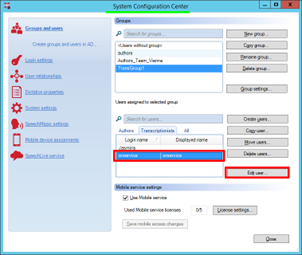
In the Enterprise Manager - System Configuration Center, select a transcriptionist user who will act as the “virtual” typist and whose account you want to configure to send status e-mails.
Click Edit user.
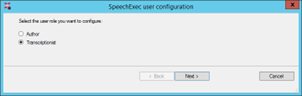
Select Transcriptionist as a user role and click Next.
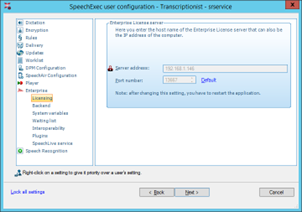
On the Enterprise - Licensing page, enter the host name and port number of the Enterprise License server that provides the Speech recognition service for Dragon license for your administrator.
Restart the Speech Recognition Service.
Online Recognition with SpeechKit
Important
Perfect deferred correction licensing
As part of the “perfect deferred correction” enhancement transcriptionists will need to be provisioned a license within the Nuance Management Console (NMC) in order to access the “correction pending” dictations.
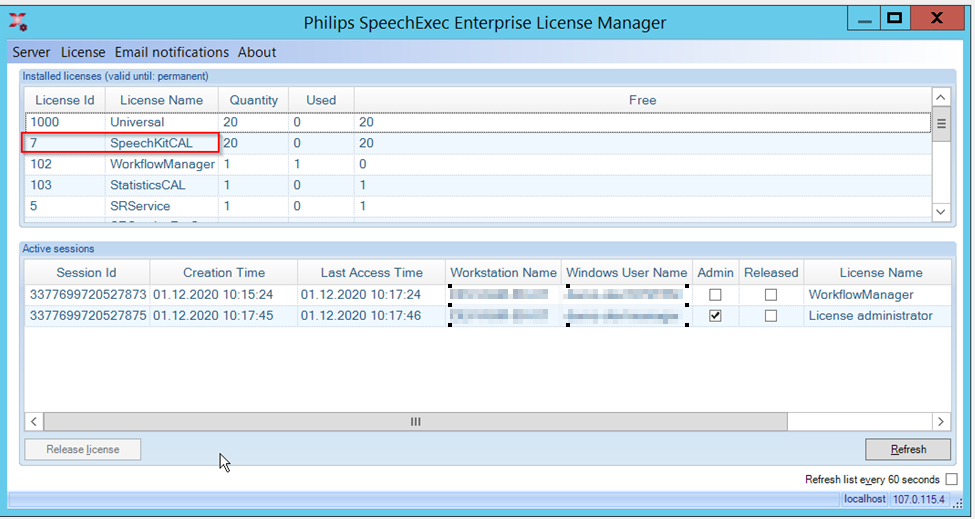
In SEE License Manager a SpeechKitCal License(s) is required
 |
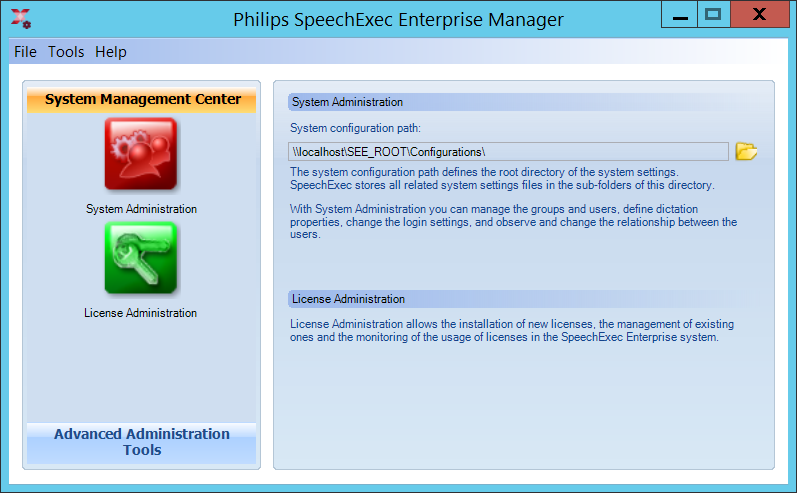
Open SEE Manager and select System Administration.
 |
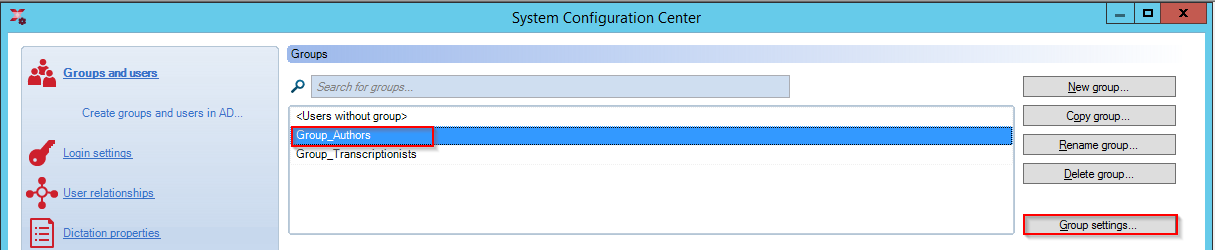
Select ‘Group_Authors’ and edit Group settings
 |
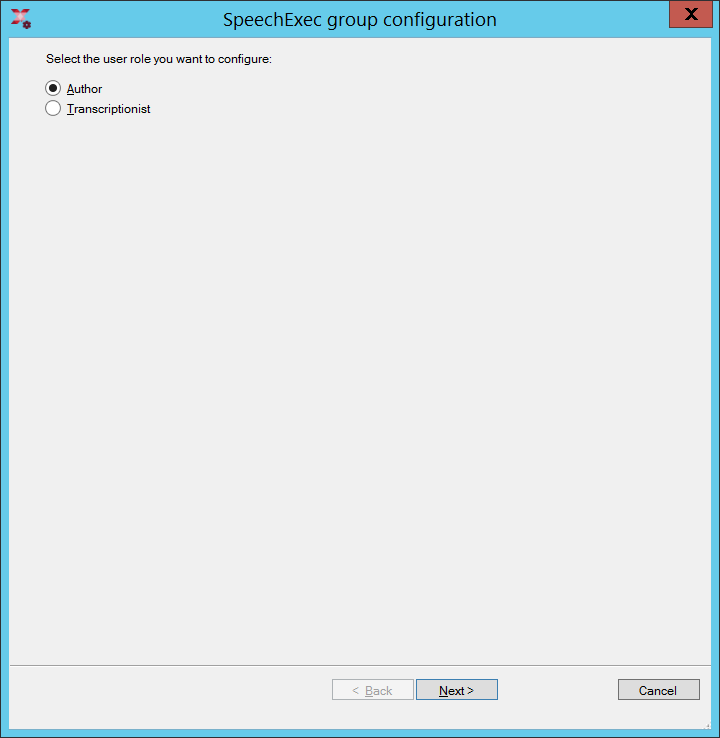
Select Author Role and press Next button.
 |
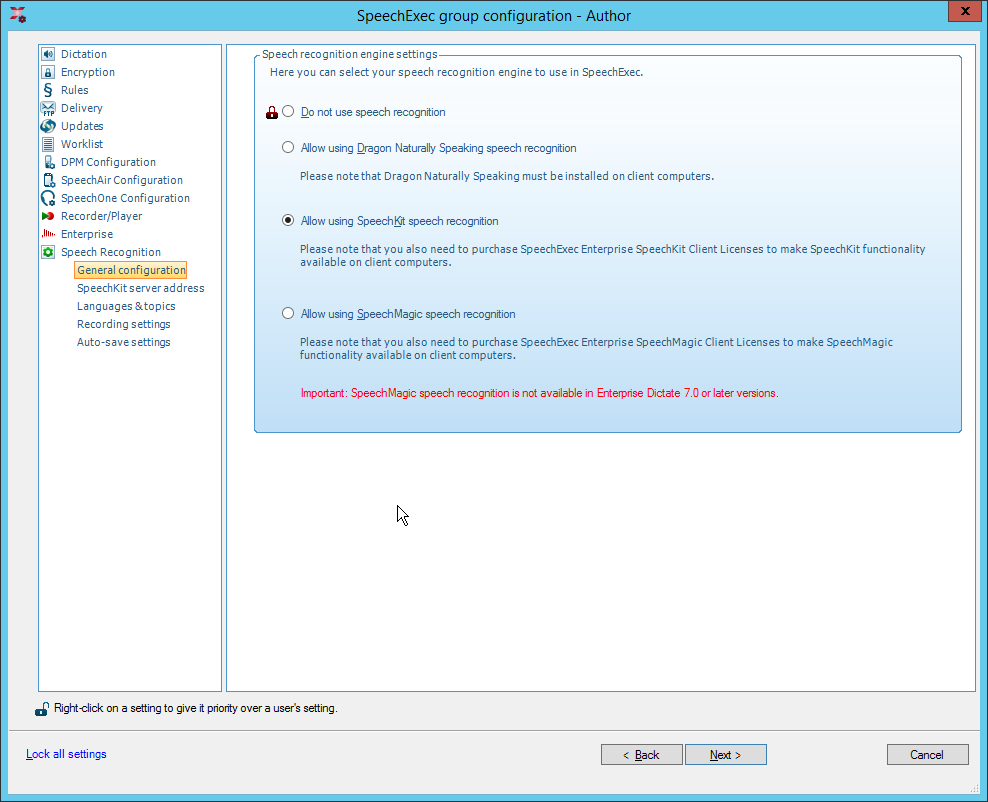
Select Speech Recognition/General configuration and enable
“Allow using SpeechKit speech recognition” and lock the setting.
 |
on SpeechKit server address page set the URL to the DMS Server and the Organization Token that was generated by the NMC.
Please use your own SpeechKit server to enter the following credentials:
Server name:
Server port: 3712
Operation token:
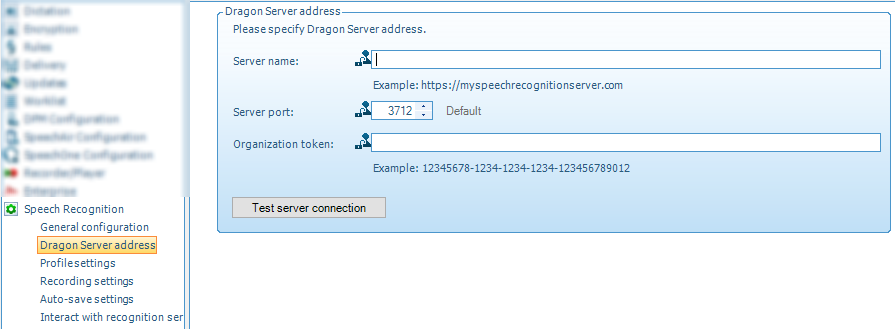 |
Lock the settings.
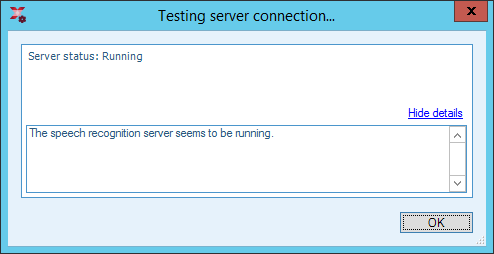
Test server connection.
 |
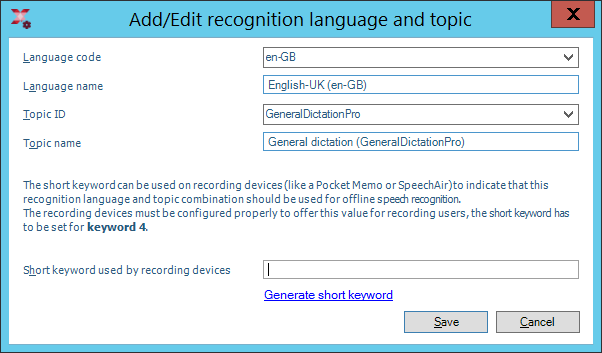
Select “Language and topics” page, add your SR language & topic names and press Save button.
 |
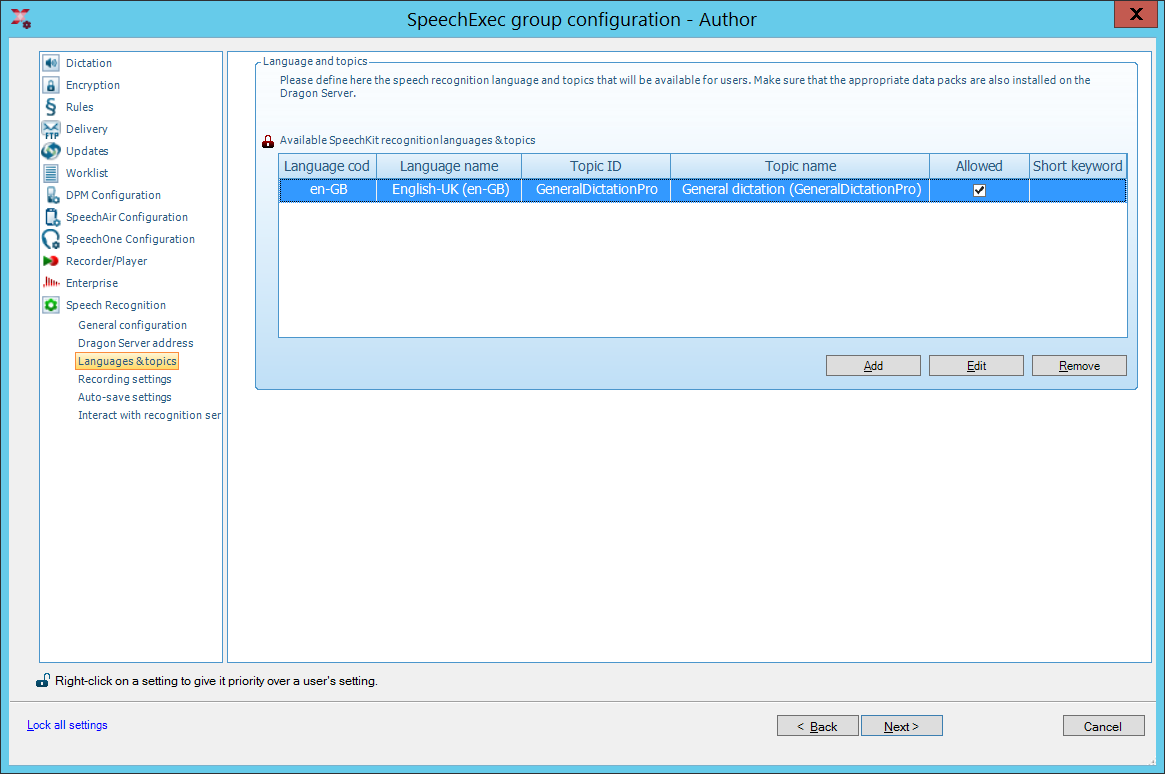
Set it to allowed and lock the setting.
 |
Offline Recognition with SpeechKit
To send dictations from SpeechExec Enterprise Transcribe to SpeechKit, you have to make sure that the Speech Recognition (SR) Service is installed and configured in your environment.
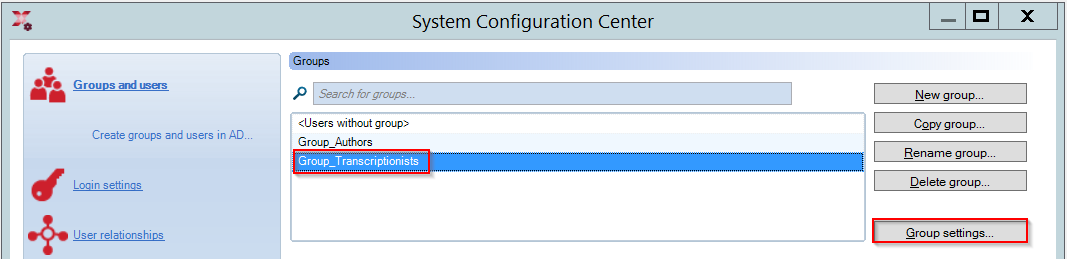
Open the group configuration of Transcriptionist setting in SEE Manger.
 |
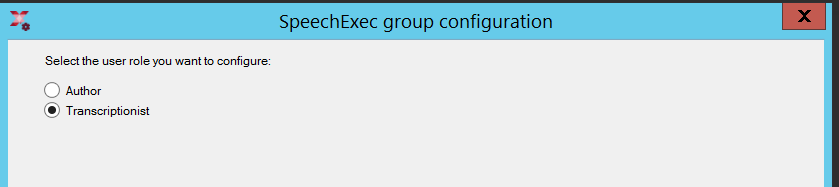
Select Transcriptionist and press Next button
 |
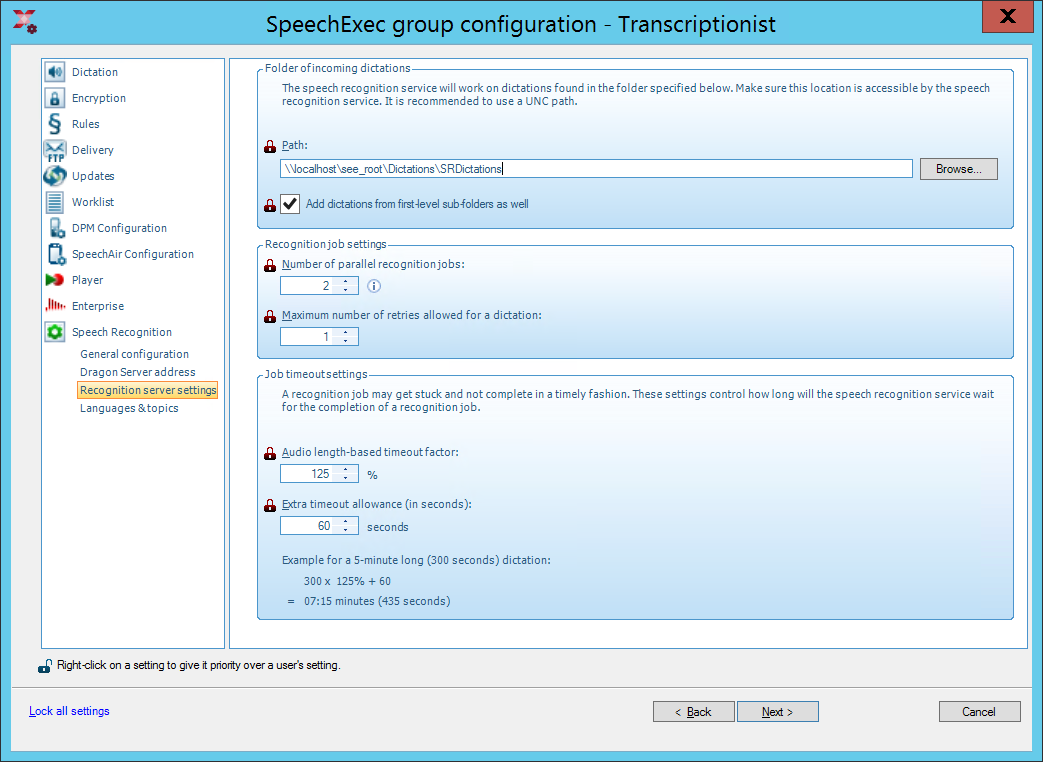
Open Recognition server settings page and set the path of a specific folder. The SR service is permanently scanning this folder for new incoming dictations.
 |
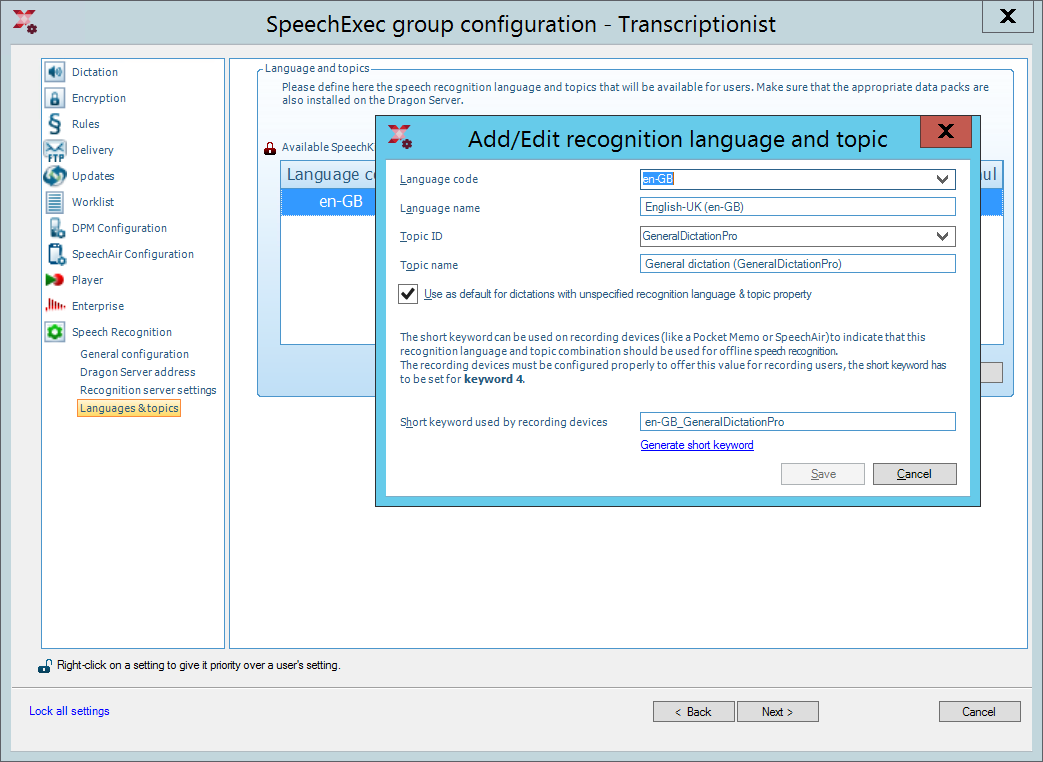
It is recommended to set a default language on the transcriptionist side, once the author hasn't defined a language for the dictation. (see screenshot below)
 |
In SpeechExec Enterprise Transcribe you have to point to that folder and make it visible for the end user.
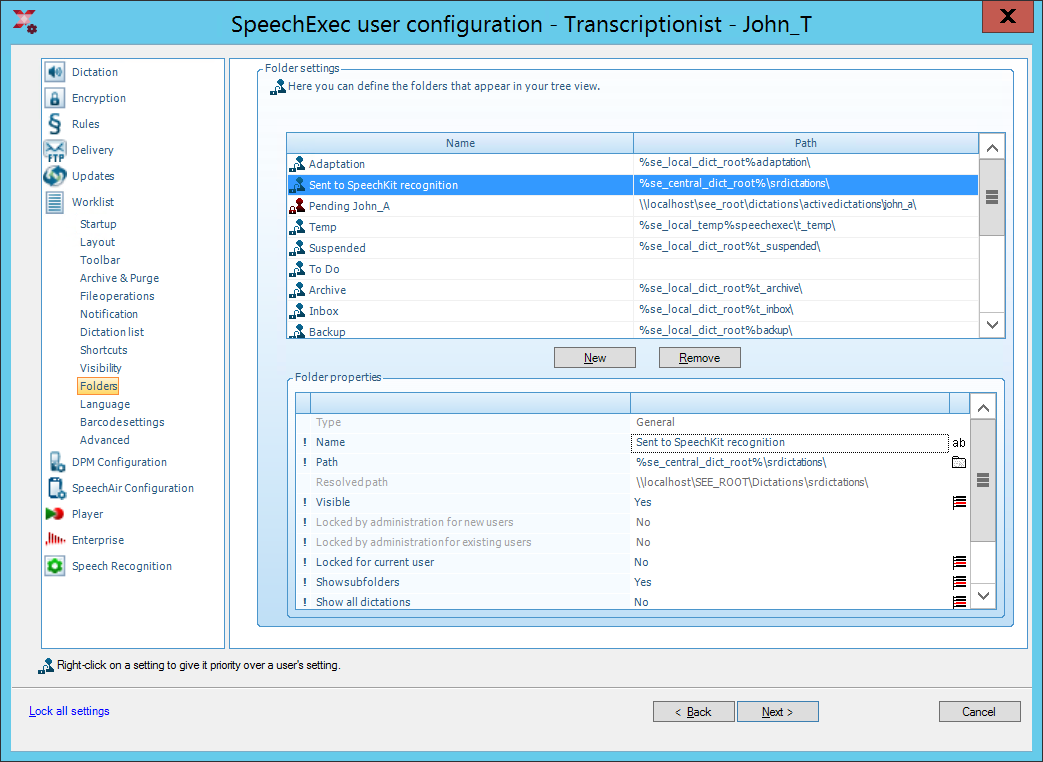 |
In this example we have created a general folder pointing to the same location, where the SR service is scanning for new dictations.
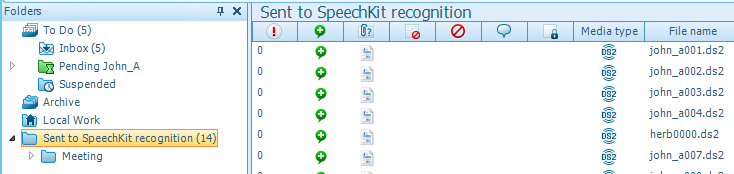
When a typist receives a dictation and wants to send it for SpeechKit speech recognition, the user has to drag and drop the file to the "Sent to SpeechKit recognition" folder.
After some seconds the SR service will fetch the dictation and forwards it to the SpeechKit server. The transcribed document will be attached automatically to the dictation.
 |
Language and topic handling improvements for Offline Speech Recognition
Notice
In certain scenarios we have identified that the SpeechKit speech recognition dictation can fail to be transcribed in an offline use case when the keyword4/typist dictation property is cleared by the user. This value is stored in another dictation property: “SpeechKit_CreationLanguageAndTopic”.
Therefore, in order to minimize the risk of a SpeechKit offline transcription failure the SEE SR Server will now primarily use the “SpeechKit_CreationLanguageAndTopic” dictation property to identify the desired SpeechKit language and topic.
Adaptation in SpeechKit
Starts processing the dictation files in the offline speech recognition queue in the Recognition and adaptation queue panel. This option is only available for Dragon NaturallySpeaking users.
With SpeechKit we do not have much influence on adaptation, everything is done on the Dragon Server.
To the best of our knowledge, there's currently no way to monitor the adaptation process.
1. For the frontend use-case:
The speech recognition profile of a Dragon SpeechKit user is continuously adapted to the user's way of speaking. The system learns by comparing the text created by Dragon SpeechKit to the final text after it has been corrected by the user. This is a statistical and heuristic process that significantly reduces the number of recognition errors over time. For adaptation to work efficiently it is essential that the system is provided with corrected text.
Important
Always correct misrecognized words. The system learns from your corrections, which means that corrected errors will appear less likely in the future. The system will assume that any misrecognized words you left in were recognized correctly, and these errors will continue to appear.
2. Deferred correction use-case:
Corrections done by the correctionist/typist are not sent to adaptation.