IIS Server
IIS Server - Installation
This chapter describes how to install IIS on a server running the Microsoft Windows Server 2019 operating system. The installation can also be used for Microsoft Windows Server 2022 operating system. In the installation of Microsoft Windows Server 2019 and Microsoft Windows Server 2022 operating systems, Internet Information Services (IIS) are not installed by default. To use IIS, you must install it on the server and then configure it. IIS installation can be done using the Server Manager (GUI) or with a PowerShell command - we will describe both methods here.
Install IIS through GUI
If your server has the graphical user interface component installed you can install IIS by following these steps.
Open Server Manager, this can be found in the start menu. If it’s not there simply type “Server Manager” with the start menu open and it should be found in the search.
Click the Add roles and features text

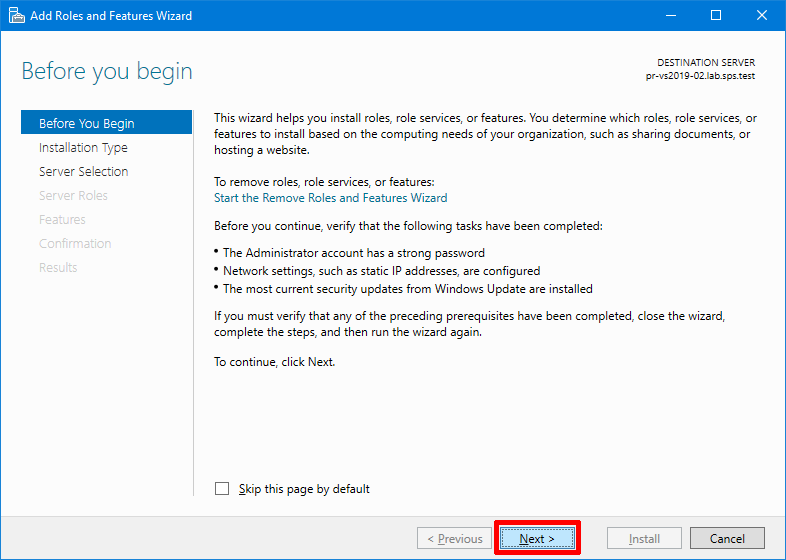
The Add Roles and Features Wizard will start with a Before You Begin page. On the page click on Next.
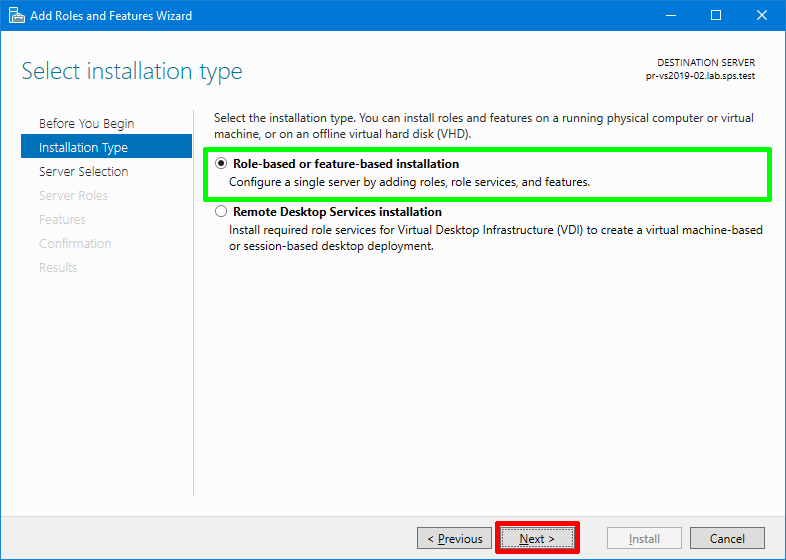
On the installation Type page, select Role-based or future-based installation to configure a single server. Click Next button.
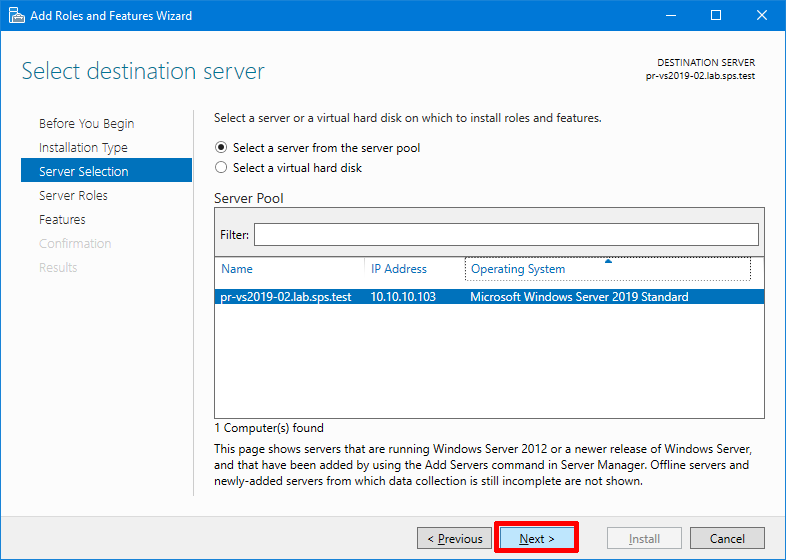
As we´re installing to our local machine, leave activate Select a server from the server pool with the current machine selected and click Next.
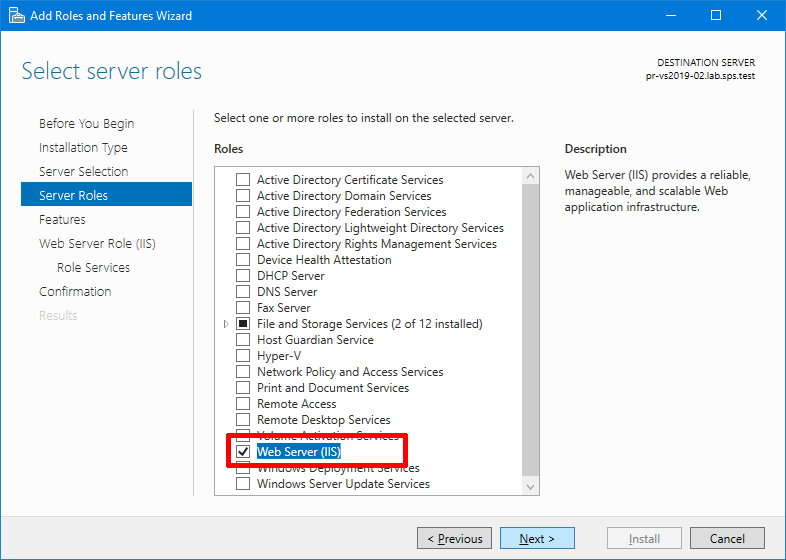
From the Select server roles window check the box next toWeb Server (IIS).
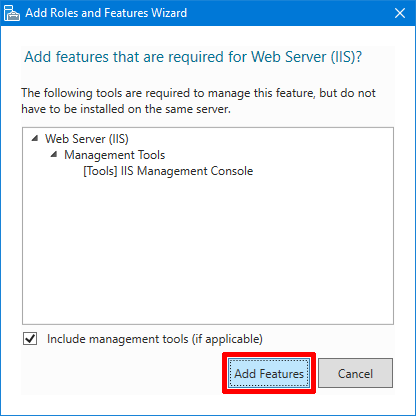
Doing this may open up a new window advising that additional features are required, simply click the Add Features button to install these as well. Click Next back on the Select server roles menu once this is complete.
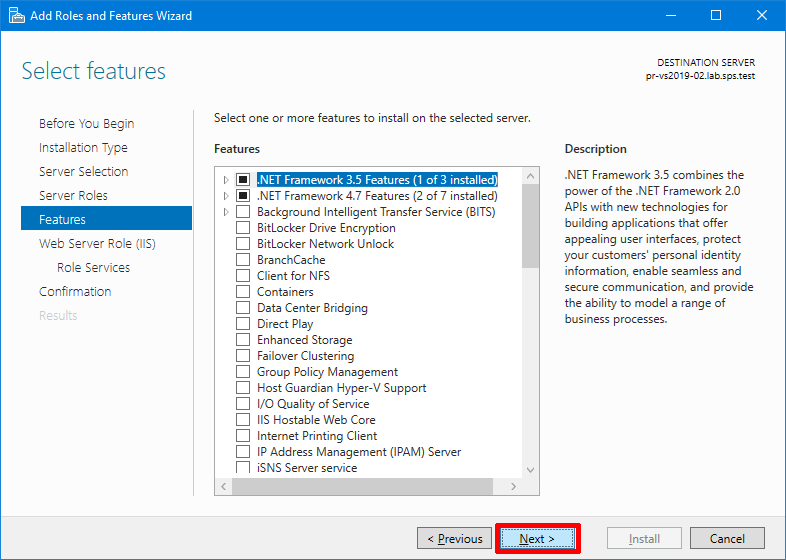
We will not be installing any additional features at this page yet, so simply click again on Next
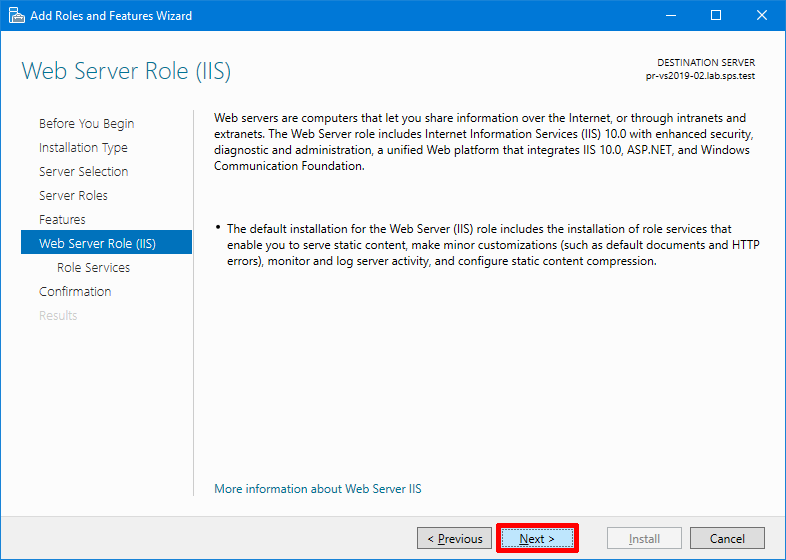
On the Web Server Role (IIS) page click on Next.
On the Role Services page select Windows Authentication and also activate IIS Management Console

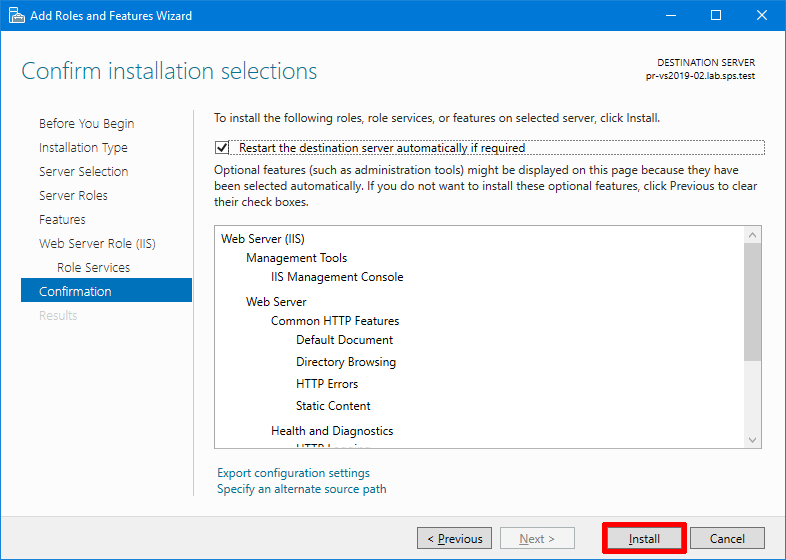
Finally on the Confirm installation selections window, verify the role services and features that are selected.
Select Restart the destination server automatically if required to restart the destination server if the settings need to take immediate effect.
To save the configuration information to an XML-based file that you can use for unattended installations with Windows PowerShell, select Export configuration settings, move to the appropriate path in the Save As dialog box, enter a file name, and then click Save.
When you are ready to start the installation process on the Confirmation page, click Install.
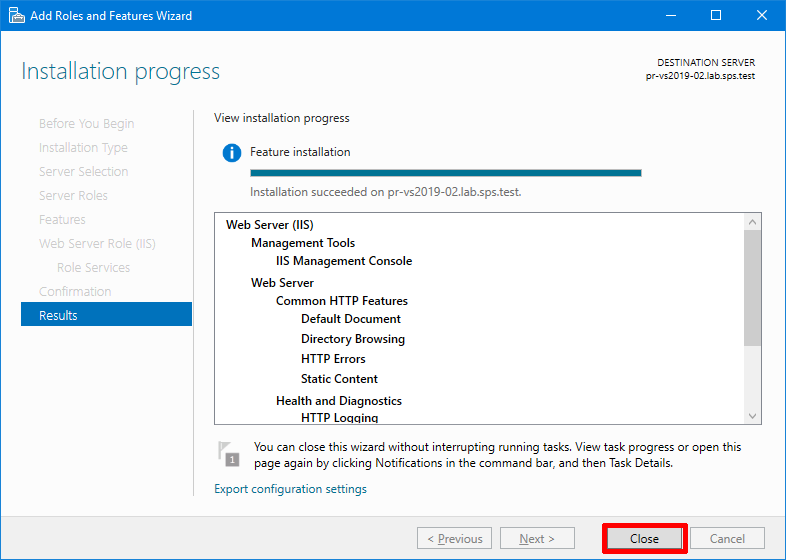
The installation progress page is displayed.

On the Results page verify that the installation succeeds and click on Close.
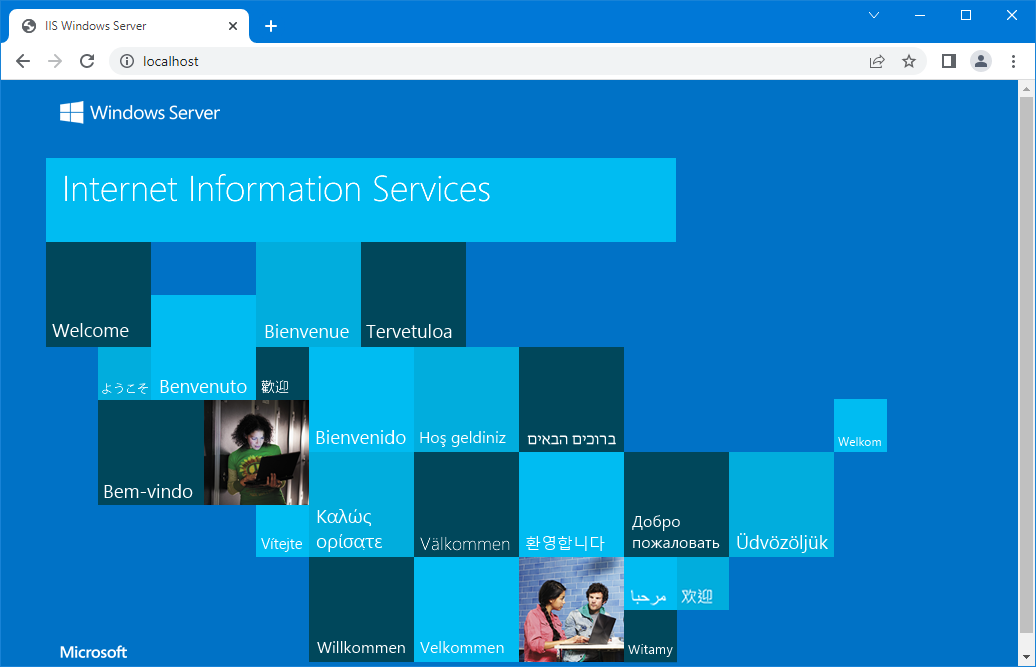
Check the Installation by opening a Web browser and verifying that the following default Web page is displayed when you use the http://localhost/ address. You can use also the computer name or the IP address as the URL see the screenshots below.
Install IIS with PowerShell
If you just want to use the PowerShell command line interface (CLI) follow these steps. This method is a lot faster than going through all of the GUI options.
Open PowerShell with administrative privileges and run the Install-WindowsFeature cmdlet as shown below. Here we include the management tools so that you can manage IIS on this server, as these are generally installed when using the GUI, making this PowerShell command equivalent with the GUI method below.
Install-WindowsFeature -name Web-Server -IncludeManagementTools

If you do not plan on managing IIS through this server then you may prefer to not include this option. Once the installation has succeeded, you’ll be returned to the PowerShell prompt.

At this point IIS should be running on port 80 by default with the firewall rule World Wide Web Services (HTTP Traffic-In) enabled in Windows firewall automatically. We can perform a simple test by opening up a web browser and browsing to the server that we have installed IIS on. You s hould see the default IIS page.
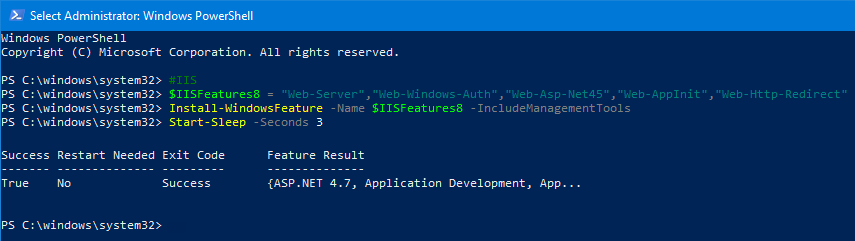
With PowerShell is very easy to install all the roles and features for the Web Services in one step. Here are the commands and parameters for the complete installation. Just copy and run.
#IIS $IISFeatures8 = "Web-Server","Web-Windows-Auth","Web-Asp-Net45","Web-AppInit","Web-Http-Redirect" Install-WindowsFeature -Name $IISFeatures8 -IncludeManagementTools Start-Sleep -Seconds 3

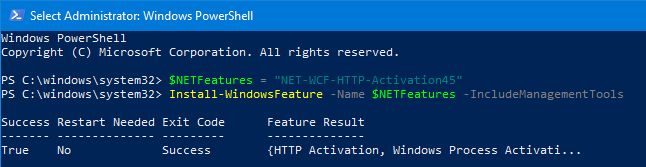
#.NET $NETFeatures = "NET-WCF-HTTP-Activation45" Install-WindowsFeature -Name $NETFeatures -IncludeManagementTools Start-Sleep -Seconds 3

IIS Server - configuration before start with service installation
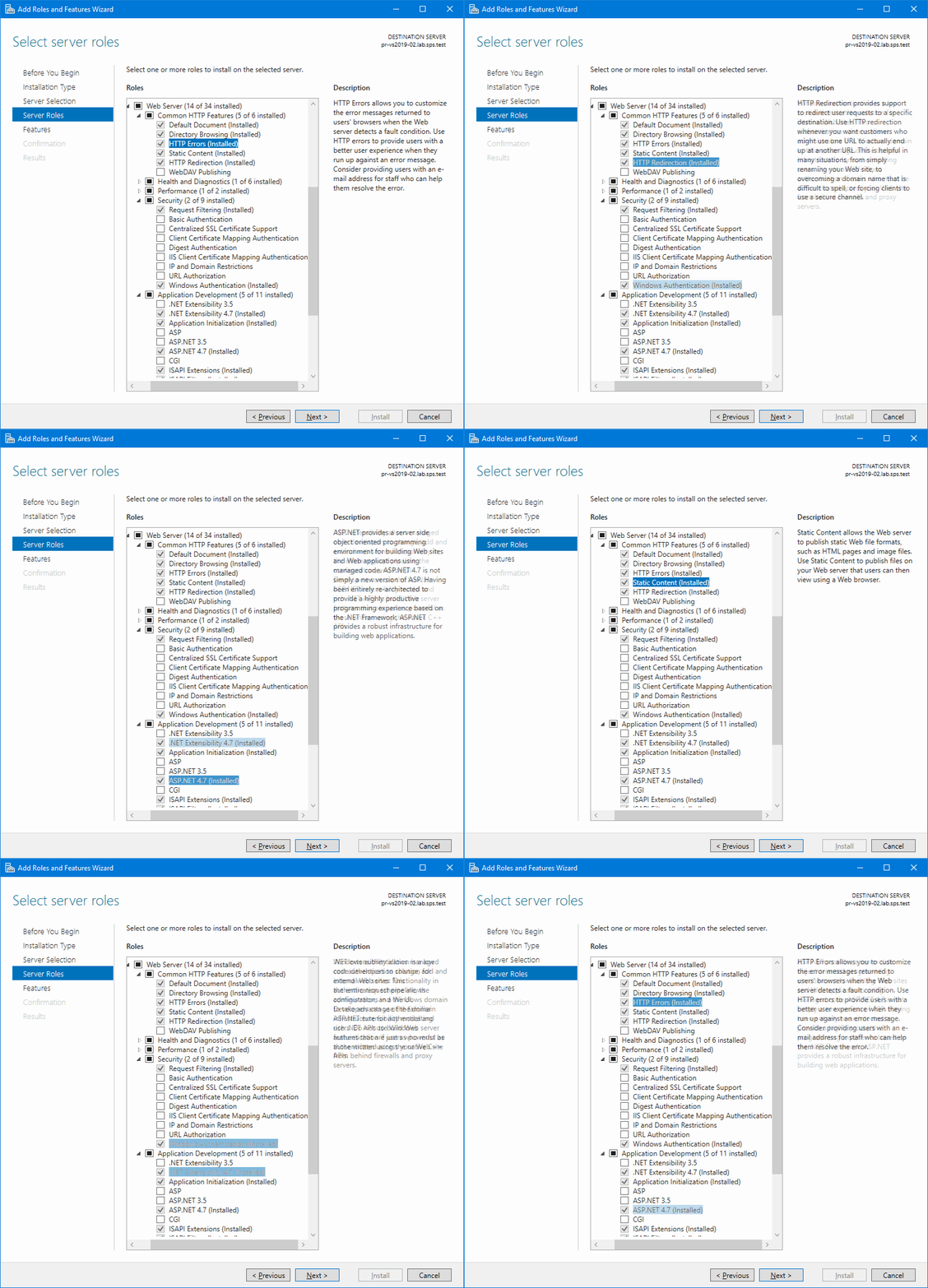
Here we have a short summary of the settings you need to configure before you start the installation.
Web access service
Web Server (IIS)
Common HTTP Features
HTTP Errors
Static content
HTTP Redirection
Security
Windows Authentication
Application Development
.NET Extensibility 4.x
ASP .NET 4.x
Mobile service
Roles tab
Security
Windows Authentication
Application development
.NET Extensibility 4.x
ASP .NET 4.x
Applicatiion initialization
Features tab
.NET Framework 4.x Features
WCF Services
HTTP Activation
SpeechLive service
Roles tab
Security
Windows Authentication
Application development
.NET Extensibility 4.x
ASP .NET 4.x
Application initialization
Features tab
.NET Framework 4.x Features
WCF Services
HTTP Activation