Enterprise App Interface Service
Define Central Configuration repository
During installation, the SEERoot configuration folder must be selected and cannot be modified by the installer later, only manual modification is supported.
If you want to change the path of the SEERoot configuration folder after the installation:
open the IIS Manager
select the SEEAppInterface nodeand double click Application Settings
double click “SEERoot” to change the path of the SEERoot configuration folder

Configure Web Service
To set up the web service to start automatically, do the following settings.
For older IIS versions – earlier than version 8

IIS versions – 8 or later
In IIS Manager, click the computer name on the Connection pane. Switch to Features View if the view is not active. Double-click Configuration Editor in the Management section of the Features View. Click the down-arrow for the Section field, expand system.applicationhost, and then click application pools. Click (Collection) and then click ellipses (…) next to the field that shows the count. In the Collection Editor, select the application pool for which you want to configure the startMode attribute. In the Properties window at the bottom, set the following values:
autoStart attribute to true
startMode attribute to Always Running
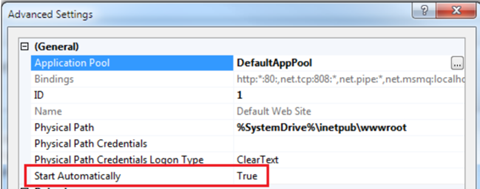
For older IIS versions – earlier than version 8
Right-click on Default Web Site and select Manage Web Site > Advanced settings…
Set Start Automatically to True
Change user identity for the application pool
To change the user identity of the application pool newly created by the application setup, follow the instructions below: On the Application Pools panel in IIS, right-click on the SEEWebServicesAppPool item and select Advanced Settings… In the Advanced Settings dialog, select Identity and click Browse (…). In the Application Pool Identity dialog, check Custom account and click Set.

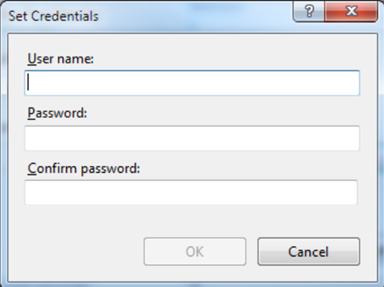
In the Set Credentials dialog, enter your user identity credentials and click OK.
Note
The user must have read and write permissions for the SEERoot configuration, Finished dictations and Archive folders
Make sure that the Load User Profile setting is set to True.
Enable Windows Authentication for the service
The SEEAppInterface service needs Windows Authentication enabled to accept authenticated requests on the service testing interface. To enable Windows Authentication, do the following steps: In the Connections panel on the left, select the Sites > SEEAppInterface web service. Select the Features View at the bottom of the panel. Double-click on Authentication in the IIS section of the panel

In the Authentication panel, do the following steps: Right-click Anonymous Authentication and select Enabled. Right-click Windows Authentication and select Enabled.

Change file upload settings
Certain IIS installations have small upload limits, resulting in failing dictation uploads. Follow the steps below to make sure that dictation files can be uploaded to Enterprise App Interface service without IIS rejecting it.
Open IIS Manager and select “SEEAppInterface” on the left side.
Open Configuration Editor located in the middle panel under Management.
On the top of the window, locate the 2 dropdown lists labeled Section and From.
Set the Section dropdown to: “system.webServer/serverRuntime”.
Set the From dropdown to: “ApplicationHost.config”.
In the available setting list, locate the setting named “uploadReadAheadSize”. This value specifies a request limit in bytes. If the value is lower than “524288000” (approx. 500 megabytes), set the value to “524288000”, otherwise leave it unchanged.
Set the Section dropdown to: “system.webServer/security/requestFiltering”.
Set the From dropdown to: “Default Web Site/ SEEAppInterface Web.config”. In the available setting list, locate the setting named “requestLimits”, expand it, then locate the setting named “maxAllowedContentLength”. This value specifies the max. size of a request in bytes. If the value is lower than “524288000” (approx. 500 megabytes), set the value to “524288000”, otherwise leave it unchanged.
Set the Section dropdown to: “system.web/httpRuntime”. Set the From dropdown to: “Default Web Site/ SEEAppInterface Web.config”. In the available setting list, locate the setting named “maxRequestLength”. This value specifies the max. size of a request in kilobytes. If the value is lower than “512000” (approx. 500 megabytes), set the value to “512000”, otherwise leave it unchanged.
Press Apply in the top right corner. Recycle the application pool hosting “SEEAppInterface” (usually SEEWebServicesAppPool).
Configuring the temporary root folder
When uploading a dictation from the Philips Voice Recorder to the Enterprise App Interface service, the temporary files used during the upload are stored in a temporary root folder. The place of the temporary root folder can be customized with the following settings:
TempRootFolderType: Choose from the following values:
UserProfile: The temp root folder path is ’the user's profile folder’ (regardless of the CustomTempRootFolderPath value). This may vary depending on the version of your Windows. On Windows 10, for example: C:\Users\\SEE_INTAPI - this is the default setting.
ProgramData: The temp root folder path is the ’program data folder’ (regardless of the CustomTempRootFolderPath value). This may vary depending on the version of your Windows. On Windows 10, for example: C:\ProgramData\SEE_INTAPI
Custom: The temp root folder path is the folder path defined in the CustomTempRootFolderPath setting.
CustomTempRootFolderPath: Define the custom path of the temporary root folder.
If no value is defined for the temp root folder settings, the UserProfile default value is used.
Using HTTPS for SEE APP Interface
Important
If the services offered by SpeechExec Enterprise App Interface are accessed from Philips SpeechLive app running on Android or iOS, using HTTPS is not optional, it is required to configure HTTPS access, as these mobile apps can only connect to HTTPSsecured endpoints.
To use SpeechExec Enterprise App Interface with HTTPS, you need to set the following settings.
In ISS Manager select the Default Web Site (or the one containing SEEAppInterface) node on the Connections panel.
On the Actions panel (on the right) select Bindings…
Click Add.
Select https from the Type combo box.
Select an SSL certificate from the SSL certificate combo box.
Click OK.
In IIS manager, select the SEEAppInterface on the left side.
Open SSL settings.
Make sure Client certificates is set to Ignore.
To properly apply the new settings, a host computer restart is recommended.
Endpoint Specific Configuration
The /app endpoints provide features mainly for apps running on mobile devices. The API calls coming from a mobile device must be authenticated. To avoid transferring the username and password with each API request, the /app endpoints use an access token-based authentication mechanism (OAuth Authorization Code Flow).
Main steps of this mechanism:
Client (mobile app) must call the /app/token endpoint and specify the end user’s login credentials.
The service tries to authenticate the user.
If successfully authenticated, the server returns an access token with limited lifetime to the client.
The client must use this access token for subsequent API calls
Access token validity period setting.
The validity period of the access tokens issued by the service is controlled by the following web.config setting: AccessTokenLifetimeInMinutes
The default installed value is 1560 minutes.
Access token cryptographic protection
The access tokens issued by the service are encrypted and validated with a cryptographic key pair (validation key and decryption key) called Machine Key. Even though this setting is called Machine Key, in reality a service specific key pair can be set for each web service hosted by a given IIS installation.
This key pair is stored in the web.config file of the service:
<system.web>
<machineKey …>
<system.web>
The service comes with a pre-installed, generic key pair. It is HIGHLY recommended to re-generate the key pair after installation!
It is recommended to use the Machine Key feature of the web service:

Note
If you deploy your application in a web farm, make sure that the configuration files on each server in the web farm have the same value for the validation key and decryption keys, which are used for hashing and decryption respectively.
Otherwise, you cannot guarantee which server handles successive requests.
Detailed information on IIS machine keys can be found here
Configuring metadata sending to the Enterprise BackEnd server
Dictation metadata can be sent to the Enterprise BackEnd (Statistics) server right after a dictation has been uploaded to the Enterprise App Interface service. You can define the connection details of the BackEnd server with the following settings:
BackEndServerName - define the name of the BackEnd server where the metadata should be sent to.
BackEndServerPort - define the port used by the BackEnd server.
If this value cannot be parsed as a whole number, the 49255 default value is used.
If the specified server name and port combination is correct, metadata is transmitted to the BackEnd server at each dictation upload. Please note, that the transmitted metadata may not be visible in the BackEnd database immediately after the upload
/masterdata endpoints for dictation seeding
Authentication
These endpoints were designed for machine-to-machine interaction between software services. A caller service can send HTTP REST requests and receive HTTP responses. Each HTTP request sent to the /masterdata endpoints is required to have a special HTTP header value.
Header key/ID:
"x-sps-api-key"
Header value:
"API_KEY_STRING"
The API keys accepted by the /masterdata endpoints must be specified in the following web.config setting: API.MasterData.AllowedAPIKeysPipeSeparated
After installation, this value is empty. This setting allows specifying multiple API keys, individual values must be separated by a pipe ( | ) character. It is recommended to:
use a globally unique identifier, like a GUID value for API key.
issue a dedicated API key for each caller software component.
Database access
Using the /masterdata endpoints it is possible to store initial dictation property values (seeds) for dictations created later. These initial values can be used by end-user SpeechExec applications (utilizing the Master Data feature of Enterprise Configuration Service) when creating new dictations. These initial values are stored in a Microsoft SQL Server database. The creation and maintenance of the Master Data database, and the required database tables/views is the responsibility of the administrator.
Sample SQL scripts can be found on the installation/distribution media of Enterprise Configuration Service (01_Foundation\03_Enterprise_Manager\Tools\SEE ConfigurationService for IIS\Samples folder).
The /masterdata endpoints of Enterprise App Interface service require the presence of a database table with the following name and proper table structure. Required name for the table: MasterDataItemsForSpeechExecEnterprise
The following settings, stored in web.config, control how Enterprise App Interface service tries connect to the database:
Settings name | Description | Example |
|---|---|---|
MasterData.MSSQL.Server | The name of the server running the MSSQL server | myserver01 |
MasterData.MSSQL.Database | The name of the database where the “MasterDataItemsForSpeechExecEnterprise” view is located | mydatabase |
MasterData.MSSQL.UseSQLAuthentication | True if using user / password based authentication. False if using Windows authentication | true |
MasterData.MSSQL.SQLAuthentication .Username | SQL authentication username (when using SQL authentication) as a Base64 encoded value | c3FsdXNlcjE= non-encoded value: sqluser1 |
MasterData.MSSQL.SQLAuthentication .Password | SQL authentication password (when using SQL authentication) as a Base64 encoded value | cEBzc3cwcmQ= non-encoded value: p@ssw0rd |
/dms endpoints for interfacing with document management systems
These endpoints were designed for machine-to-machine interaction between software services. A caller service can send HTTP REST requests and receive HTTP responses. Each HTTP request sent to the /dms endpoints is required to have a special HTTP header value.
Header key/ID: "x-sps-api-key"
Header value: "API_KEY_STRING"
The API keys accepted by the /dms endpoints must be specified in the following web.config setting: API.DMS.AllowedAPIKeysPipeSeparated
After installation, this value is empty. This setting allows specifying multiple API keys, individual values must be separated by a pipe ( | ) character.
It is recommended to:
use a globally unique identifier, like a GUID value for API key
issue a dedicated API key for each caller software component
Testing the web service
Enterprise App Interface service provides a dedicated testing interface: <url_od_web_service>/test/testconfig. For example, if the web service is running on the local computer, the URL looks like the following: http://localhost/SEEAppInterface/test/testconfig. To limit user access to the URL, opening this URL by default requires the following:
an authenticated Active Directory user session on the calling (browser) side
the calling user must be the member of the SEEAdminsRoot Active Directory security group.
The test process validates the server configuration settings and returns a JSON array of validation steps. Each validation step consists of a StepID, a StepResult and a StepExplanation. Returned response codes can be the following:
401 (Unauthorized), if the current user cannot be authenticated by the web service.
566, if any of the validation steps failed.
200 (OK), if all validation steps passed.
Note
Please make sure that the Enterprise App Interface service is Enabled and has a compatible License Server configured in Enterprise Manager before attempting a test!
To turn on Enterprise App Interface service:
Open Enterprise Manager -> System Administration -> Groups and users ->Mobile service settings (panel) and enable the service.
Add a supported License Server (with a compatible license loaded) in the License Settings… window (accessible from the same panel).
If the above conditions are not met, the test will fail at “020_SEELicenseServerAddressFoundInConfig”.
StepID | Explanation |
|---|---|
001_SEERootFoundInConfig | SEERoot value must be found in web.config. |
005_SEERootExists | The folder specified by the SEERoot value exists. |
010_SEERootStructureCorrect | The service must be able to read from and write to SEERoot. |
020_SEELicenseServerAddressFoundInConfig | License server address found in SEERoot config. |
025_SEELicenseServerPortFoundInConfig | License server port found in SEERoot config. |
030_SEELicenseServerCanConnect | Connection to License server is available with the given address and port in the SEERoot configuration |
035_TempRootFolderAccessible | The specified temp root folder is accessible (all types of temp root folder are tested) |
Please note that the response content is always returned in English.
Example response result when the 1st step passed, but the 2nd step failed:
[
{
"StepID":"001_SEERootFoundInConfig",
"StepResult":"SUCCESS",
"StepDescription":"SEERoot value is found in web.config"
},
{
"StepID":"005_SEERootExists",
"StepResult":"FAIL",
"StepDescription":"The folder specified by the SEERoot value does not exist"
}
]
Example response result when all steps are passed:
[
{
"StepID": "001_SEERootFoundInConfig",
"StepResult": "SUCCESS",
"StepDescription": "SEERoot value is found in web.config"
},
{
"StepID": "005_SEERootExists",
"StepResult": "SUCCESS",
"StepDescription": "The folder specified by the SEERoot value exists (D:\\seeroot)"
},
{
"StepID": "010_SEERootStructureCorrect",
"StepResult": "SUCCESS",
"StepDescription": "The structure of SEERoot is correct (it has all required sub-folders and required .config files)"
},
{
"StepID": "020_SEELicenseServerAddressFoundInConfig",
"StepResult": "SUCCESS",
"StepDescription": "Valid License Server address in configuration"
},
{
"StepID": "025_SEELicenseServerPortFoundInConfig",
"StepResult": "SUCCESS",
"StepDescription": "Valid License Server port in configuration"
},
{
"StepID": "030_SEELicenseServerCanConnect",
"StepResult": "SUCCESS",
"StepDescription": "License Server connection successful"
},
{ "StepID": "035_TempRootFolderAccessible",
"StepResult": "SUCCESS",
"StepDescription": "UserProfile: The specified temp root folder is accessible (C:\Users\testuser\SEE_INTAPI); ProgramData: The specified temp root folder is accessible (C:\ProgramData\SEE_INTAPI); Custom: The specified temp root folder is accessible (d:\work\MyTestFolder); "
}
]
Authentication details for testing the web service
Important: The /test/testconfig URL should only be accessible for administrators, and only for testing purposes!
For diagnostics purposes, access control can be re-configured using the following web.config settings:
<add key="TestingRoutes.AuthorizedADGroups"
value="%GROUPLIST%" />
<add key="TestingRoutes.DisableAuthorization"
value="false" />
Warning
By setting the value of TestingRoutes.DisableAuthorization to “true”, access to the /test/testconfig URL becomes totally unrestricted, i.e. ANY user can call it WITHOUT authentication.
Access to the /test/testconfig URL can be restricted to members of certain Active Directory security groups by listing the allowed groups in the value of TestingRoutes.AuthorizedADGroups. Multiple groups can be specified by separating the Active Directory group names with a comma (,).
Troubleshooting
Logging
The name of the log configuration file is SpeechExecLog.config. It is in the root folder of the Enterprise App Interface service (visible in Content View). It is the IIS administrator’s responsibility to manually edit the SpeechExecLog.config file and specify correct configuration values.
The default path of the log file is:
<param name="File" value="c:/SEEAppInterfaceLogFolder/SEEAppInterface.log" />
The default maximum size of the log file is:
<param name="MaximumFileSize" value="1000MB" />
How to set up the application pool of the web service
In the Connections panel on the left, find the Sites SEEAppInterface web service.
Right-click on the web service, and click Manage Application > Advanced setting
In the Advanced Settings dialog, select Application Pool and click on Browse (…)
In the Select Application Pool dialog, select SEEWebServicesAppPool, and click OK.
How to create a new application pool
Application pools allow isolating one web application from another, even if they are running on the same server. This way, if there is an error in one app, it will not take down other applications. Additionally, application pools allow specifying different levels of security (for example, file access security) for different apps. The installer of the web service will, by default, create a new application pool and assign the web service to the pool.
If a new application pool must be created, follow the instructions below:
Open the Internet Information Services (IIS) Manager.
Select Application Pools from the Connections panel on the left. Right-click on the Application Pools panel and select Add Application Pool…
Enter a name for your new application pool, such as SEEWebServicesAppPool.
In the .NET CLR version list, select : .NET CLR Version v4.0.30319
Make sure the Start application pool immediately checkbox is selected.
Click OK to create and start the application pool