Release history
Changes in SEE 9.0
This page is to outline some of the key features of the forthcoming SEE 9.0 release and explains some the key features of the upcoming release.
SpeechLive App/Enterprise App Interface
App Interface improvements for DMZ environments
As customers work from home and out of the office on a more frequent basis this has posed challenges for IT Administration teams in companies to ensure the data entry on to their network is as secure as possible.
We have received specific use cases relating to the operation of the application within DMZs to ensure that these use cases can be satisfied.
These changes relate to how the files are passed through the DMZ and how the user is authenticated when utilizing SEE and a DMZ within the same environment.
SpeechKit integration improvements within App Interface
Many of our customers are working more and more remotely due to advances in technology. Our SpeechLive App for SpeechExec Enterprise has been key player in the flexible and remote working. The app allows the user to record from anywhere and upload their dictations from anywhere when connected to mobile data or WiFi.
Coupled with that our Nuance SpeechKit integration has made the transcription of these files effortless. However, there has been a pain point whereby the support staff have had to move these files to the SpeechKit folder in SEE in order to be speech recognized.
With this update of our SL App for SEE we have made this workflow even more seamless so now the files destined for SpeechKit recognition are immediately uploaded to the correct folder as defined in the settings and no longer require manual intervention.
SpeechLive App – Ability to add pictures/files to dictations created within the SpeechLive App
As the SpeechLive App for SpeechExec Enterprise is the long term successor for the Philips Voice Recorder (PVR) app we are focusing our development efforts to close one of the final feature parity gaps between the apps.
This is the ability to attach pictures and files to dictations. Within this release of the Enterprise App API we extend the functionality to support picture attachments within the SL App for SEE. This will mimic the PVR functionality and allow the user to submit one photo to a dictation. If they select multiple photo attachments then the files with be added to a .zip file and attached to the dictation.
Note
Video attachments are not supported from the SL app to SEE. Furthermore, if a dictation is submitted to SpeechKit the returned, transcribed document overwrites the attachment in the SEE client.
The SpeechLive App is downloadable from the relevant app stores (iOS and Android).
The SpeechLive app allows the picture attachment button to be visible in the SEE segment of the SpeechLive app (accessed by choosing “Sign into SpeechExec Enterprise). The picture attachment can then be uploaded by accessing the dictation properties and then by pressing the camera icon within there.
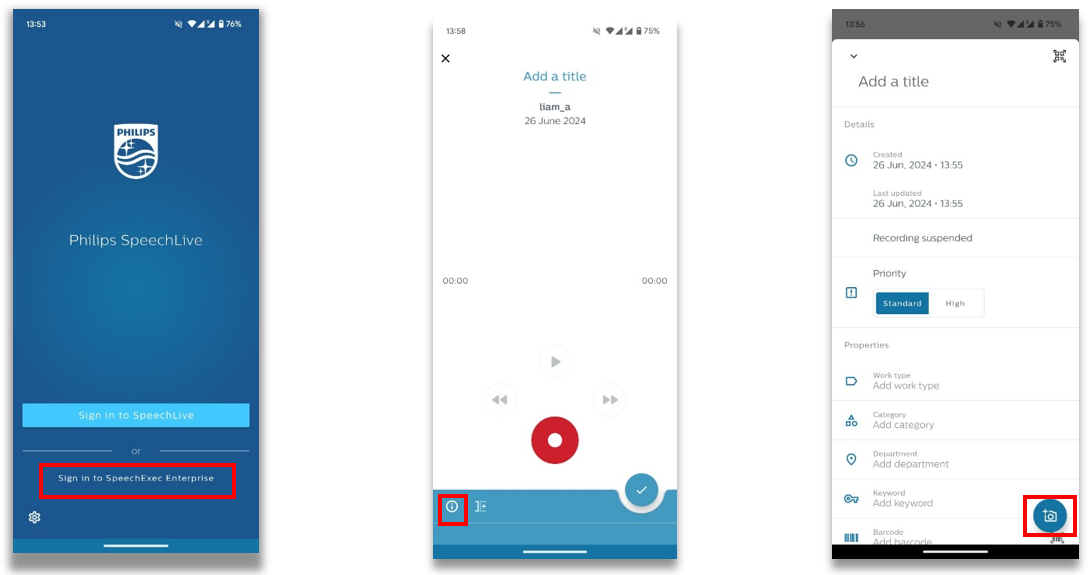
Accessing SEE in the SpeechLive App and finding the picture attachment button.
Statistics Module
Implementation of dictation turnaround time display
The Statistics Module within SEE is a key component to an SEE Admin being able to ascertain how quickly dictation files move through the system and allows them to identify bottlenecks to improve the company’s document creation efficiency.
The Statistics Module is an extremely in-depth tool for gaining the aforementioned insights, however that is not to say that it could not be improved further.
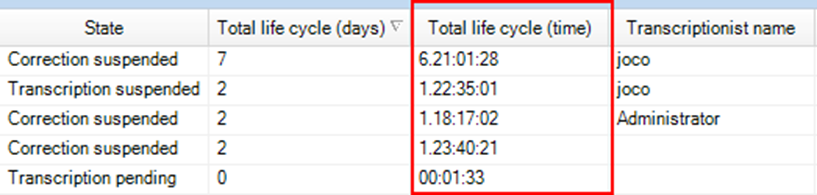
Due to Customer feedback we have identified that the “Total life cycle (time)” was not of the required detail. For this release of SEE we have improved this so that this metric is now broken to days:hours:minutes:seconds. Previously this metric showed anything below 1 day as a metric of zero.
The below is an example of what this metric will present like in the new release.
SR Server/SpeechKit Improvements
Integrate SpeechKit v5 SDK
At SPS we pride ourselves on the integrating the most stable versions of 3rd Party SDKs in order to allow our solutions operate at a market leading stability level.
Within this release of SEE we will integrate the SpeechKit v5 SDK to offer our customers the market leading online and offline speech recognition that utilizes the Nuance clouds (Dragon Medical One, Dragon Legal Anywhere and Dragon Professional Anywhere).
Extend supported languages for DLA/DPA within SR Server/Enterprise Manager
As part of this release our SEE software will support Dragon Legal Anywhere and Dragon Professional Anywhere software hosted in the SPS Nuance Management Console cloud. This is available across all regions for connection with SEE via the Enterprise Manager.
To support the languages of DLA and DPA we have extended the supported languages within SEE to reflect this. The additional languages added to SEE are: en-AU (Australian English, Professional only), en-CA (Canadian English, Professional only), fr-CA (Canadian French, Professional only), de-CH (German Swiss, Professional & Legal), nb-NO (Norwegian Bokmal, Professional only) & nn-NO (Norwegian Nynorsk, Professional only).
License Server
Campus License Support
Some customers need a large scale deployment in an isolated environment from the internet. Therefore, we have extended the support for the Campus License we offer meaning that this time limited licensing model is now available in all new versions of SEE going forward.
Changes in SEE 8.8
This page is to outline some of the key features of the forthcoming SEE 8.8 release and explains some the key features of the upcoming release.
Active Directory Configuration Improvements
SEE needs to provide the admin the possibility to define AD group names instead of the built-in, hardcoded ones. This is because some Prospects will have their own specific AD naming conventions and do not wish to be restricted in what the SEE AD Groups can be named.
SpeechExec Enterprise has the option to work together with the company’s Active Directory (AD) subsystem and provide the following features:
Login to EM via AD
Create groups and users in AD based on SEE groups and users
Create groups and users in SEE based on a pre-defined AD group structure and the groups’ member users and keep them synchronized
The AD synchronization and interoperation of SpeechExec Enterprise up to version 8.8 relies on a pre-defined and hard-coded AD structure:
The synchronization process expects the presence of a known AD group hierarchy
With hard-coded AD group names that cannot be overridden by the end-user pre-created by the end-user’s IT administrator
There are some SEE sites where naming conventions or policies for Active Directory groups do not allow creating groups with the built-in, hard-coded names SpeechExec Enterprise would require. To satisfy the special needs of such sites, it must be possible to override the AD group names in a way that they satisfy the local rules and found and usable by Enterprise applications.
SpeechExec Enterprise needs to provide the admin the possibility to define AD group names used instead of the built-in, hardcoded names.
In SEE v8.8, the admin will have the possibility to configure these group names in a new configuration file.
The AD group names can be edited but must conform to the following syntax rules:
Cannot contain leading or trailing spaces
Cannot contain any of the following characters: # , + " \<> ;
If the AD names are changed from the default AD names these cannot be amended again or reverted.
MasterData Improvements
SEE needs to provide the admin the possibility to define AD group names instead of the built-in, hardcoded ones. This is because some Prospects will have their own specific AD naming conventions and do not wish to be restricted in what the SEE AD Groups can be named.
Due to customers wanting to leverage speech recognition and utilize our industry leading workflow software we have further improved the MasterData functionality. This functionality allows the synchronization of client or patient data from a database. This improvement is regarding the SpeechKit (DMO, DLA and DPA) integration within SEE.
Currently the MasterData functionality is only available in traditional audio dictation creation and not the SpeechKit dictations.
Therefore, The SpeechKit SR workflow must support the entire MasterData synchronization feature, similar to the:
Digital dictation workflow
Dragon online SR recording
The MasterData synchronization will be available in
SpeechKit recorder
SpeechKit correction editor
The MasterData synchronization feature must work the same way as it does in the above-mentioned components
MasterData synchronization will be performed automatically when opening the recorder or correction editor windows
Dictation properties containing MasterData will be shown as non-editable (disabled)
Pressing the Import data button will manually start a MasterData query from the database
When SpeechExec tries to synchronize MasterData during device download and no information is found for the downloaded dictations in the MasterData database a warning is displayed.
There is now an option to disable this warning.
SpeechLive App for SpeechExec Enterprise
There have been two small improvements made for the SpeechLive App when it is being accessed and in use with SpeechExec Enterprise. These relate to the usability improvements for this app.
The first change is that we have resolved an issue with the SpeechLive App for SEE whereby SEE Users logged into the app but had no internet connection or were connected to the internet but had no connection to the SEE Server could not record dictations. Users can now record dictations if the SEE User is logged into the SpeechLive app.
The second change has resolved an issue whereby a naming logic issue could prevent a dictation from uploading.
We are continuously developing the SpeechLive app for use with SpeechExec Enterprise and hope that these changes and improvements encourage our customers to move from the Philips Voice Recorder app to the SpeechLive App.
Foot Control for Perfect Deferred Correction
There has been an error identified whereby if a transcriptionist is transcribing using the “perfect deferred correction” via the SpeechKit correction window, in some instances, it can occur that an error message is displayed if an onboard microphone/external microphone is not enabled. Currently it is possible for the transcriptionist to disable the error message.
We have changed the behavior so the ability to show or hide the error message can be defined by the Administrator in the Enterprise Manager for the group.
Miscellaneous
Resolved an issue whereby an MP3 dictation cannot be opened in SpeechKit Correction editor after successfully recognized by the Enterprise SR server.
Further fine tuning of our existing Active Directory synchronisation feature to improve the detection of an AD group containing the same group twice or an AD group containing the same user twice.
Changes in SEE 8.7
This page is to outline some of the key features of the forthcoming SEE 8.7 release and explains some the key features of the upcoming release.
Statistics Module & BackEnd Server
The Statistics module and BackEnd Server are the two components that allow the ability to run reports on the document creation efficiency within your organization. We have further enhanced these capabilities with the following changes and improvements.
Unify Author names used for Statistics
Within our SpeechExec Enterprise ecosystem there are several different modules. Currently, if a site was to utilize several of these modules (for instance the SEE Dictate/Transcribe, Web Access and the Enterprise App Interface or Mobile Service) it would be possible for the Author who dictated to have different user names within the Statistics module. These different user names for the same user make it more difficult for the Administrator to ascertain the correct statistical data.As a result of this, the Author names for each module have now been unified which means only one author name will show per user. This allows for more accurate and efficient use of the Statistics module by the site Administrator.
Speech Recognition jobs included in SEE Statistics Module
At SPS we recognize that utilizing SR along with the workflow capabilities of our software can lead to greater efficiency gains in the document creation process.Since SEE v7.0 the Nuance SpeechKit SDK has been integrated into SEE. This has allowed our users to benefit from industry leading SR software coupled with industry leading speech processing workflow software.However, prior to SEE v8.7 any SR files created via online or offline SR were not included within the statistical reports. This made it difficult for the site Administrators to assess the benefits of SR to document creation turnaround times and return on investment.Therefore, the SR files are now included in the statistics from SEE v8.7 onwards giving the site Administrator greater visibility of the effectiveness of SEE with SR integrated.
Dictation properties updated in Statistics database
Currently within the Statistics database the only events that were recorded were state changes to a dictation (e.g. Transcription pending, Transcription in progress, etc). We received multiple requests to extend the events that could be documented by the Statistics database so that would be possible to see which user made a change to a dictation property (e.g. work type, title, priority, etc).As a result of this feedback and since these property changes were not currently documented elsewhere within SEE, we have implemented this within SEE 8.7. It therefore gives the SEE Admin far greater visibility of changes that are made to a dictation and enhances the ability to query a dictation history.
New Administration guide for Backend server
With the release of SEE 8.7 we have further enhanced the supporting documents for Partners and IT Administrators. One such document that has been improved significantly is the Backend Server Administrators guide.This now fully covers the use case using an existing SQL database instance for the SEE Backend Server rather than focusing entirely on the implementation of the SEE Backend Server via the SQL Express utility that is included within the installation media.This has been added due to the requests from Partners and IT Administrators who would like this real world use case documented in a more in-depth manner.
Enterprise Manager
Import/restore SEE Root from backup
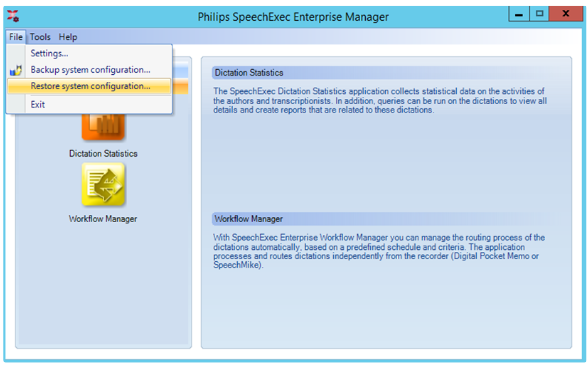
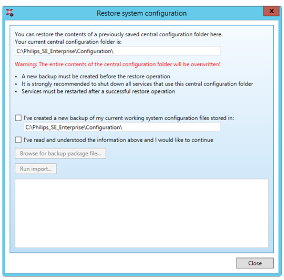
Since the inception of SEE as a solution there has never been the ability to import the root configuration folders (SEE Root) from a backup. Given that SEE is an on-premise, server based solution and servers will have a lifecycle due to such things as operating system support periods and other factors.Following feedback from Partners and IT Administrators about the amount of effort that is required to migrate the SEE server configurations to a new server we have developed the ability to import and restore an SEE Root folder configuration (and all SEE settings) via a .zip file that can be imported via SEE EM.The inclusion of such a feature will make it easier to migrate the SEE server configurations to a new server.
Workflow Manager
Workflow Manager file permission update
When using the WFM to route files to a different folder it had reported from the field that the files did not always inherit the folder permissions of the destination folder. This could mean that if a file moved to a different folder via the WFM and retained the original folder’s permissions there were occasions when users with access to the destination folder could not access these.As a result of this we have improved the permission inheritance behaviour to reduce such instances for end users.
Client Software
Remove “Destination” folder from recording window
When an author created a file via the SpeechMike using the recorder window there is the option to choose a different destination folder within the recording UI.
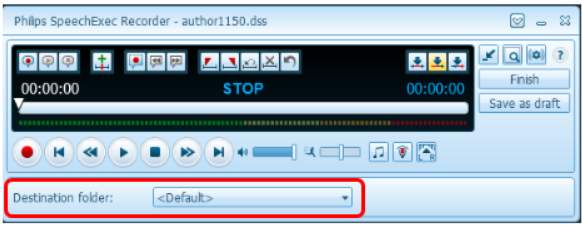
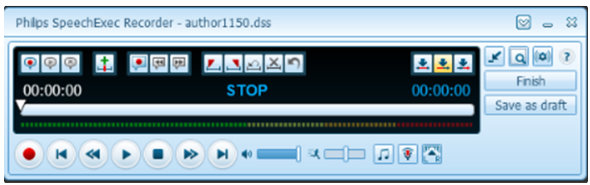
If an Author were to do this, it would route the dictation a different destination folder to the default destination folder. This could have the unintended impact of the file then not adhering to the correct WFM rules (if in use) or not being visible to the correct Transcriptionist.As a result of this we have added the option within the Dictate and EM software (so it could be centrally configured by the IT Administrator, if desired) to disable the “Destination folder” drop list from the recorder window UI.
Imperfect and Perfect audio playback switch
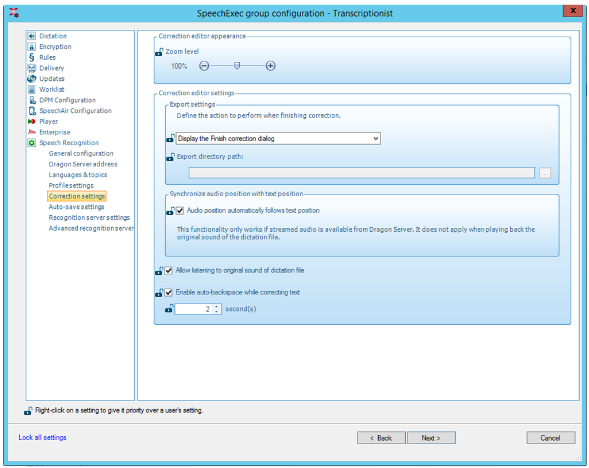
Having released the perfect audio playback for SpeechKit file corrections we have identified an issue whereby if a user is not using the perfect audio stream an error message emanates from the SpeechKit playback bar.To remedy this we have added the ability for the correction window to retain the last user setting. Therefore, if a typist has to change to the imperfect audio playback, this setting will be retained for the next dictation file they need to process.
Auto backspace support for SpeechKit Correction window
When undertaking SpeechKit corrections in the SpeechKit Correction window there had not been auto backspace support. This caused the Transcriptionists a pain point because it meant that when they were pausing the playback of a dictation, if they wanted to listen back to the last couple of seconds of the file when they were pausing they needed to manually rewind via the mouse rather than foot control. This behaviour was counter intuitive for the end user and the opposite behaviour to what was experienced when undertaking a normal audio transcription.As a result, we have implemented the auto backspace functionality within the SpeechKit Correction window for typists.
Web Access Module
The Web Access module allows a site’s users to access their SEE Dictate or SEE Transcribe via the Google Chrome browser. This means that they could effectively access the solution from any machine making it ideal for the hybrid working scenario.Within these two improvements we are giving the Web Access further feature parity to the SEE Dictate & Transcribe desktop applications.
General folder visibility
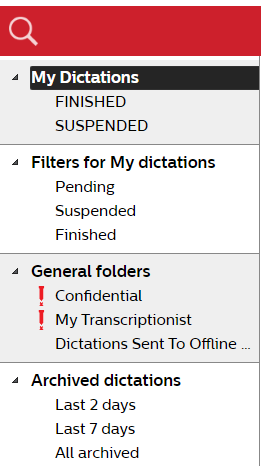
In previous iterations of the Web Access module the “General Folders” that can be defined in EM and are visible in SEE Dictate & Transcribe desktop applications would not be accessible or visible within the Web Access Dictate & Transcribe. If an Author used the “General Folders” extensively within the SEE Dictate it meant they could not view their work within the “General Folders” in SEE Web Access. The same behaviour was also exhibited for the Web Access Transcribe. This has now been remedied within this release.
Archive folder visibility
A crucial part of any speech processing workflow is the ability to have an up to date work list. This has previously not been possible with the Web Access Transcribe module due to the fact that when a file has had its status changed to “Transcription Finished” by the Transcriptionist, upon completion, the file has not been archived. Coupled with that it has not previously been possible to view the Archive folders within the Web Access Transcribe.Therefore, we have developed this module further to resolve these two pain points and have added the ability for dictations with the state “Transcription finished” to be moved to the “Archived dictations” list. This means the Transcriptionists work list will now only display jobs that are yet to be processed. Further to this the Transcriptionist can now access the “Archived dictations” folder to retrieve or query any files that have moved to this folder – previously this would need to be undertaken via the SEE Transcribe desktop app.
Unified Installer
Improved unified installer installation guide
A feedback that we have received from our Partner network has been that, although the Unified Installer is a step forward in terms of the installation process for SEE, the documentation has been lacking.We have therefore refined the documentation to provide a more step by step approach with improved documentation of each step required to enhance the simplicity of the installation process.
Mobile App Interface
Improved behaviour of the dictation list displayed with the SL App (more up to date information)
We have identified an issue with the Enterprise App API and the SpeechLive App in that when a dictation is completed by a Transcriptionist and the state is changed the dictation does not then display within the correct column within the SpeechLive app.This is problematic because if an Author is working out of the office and wanting to query their worklist via the SpeechLive app they may be misinformed of the status of dictations. Therefore, with this fix the Author can query their worklist via the SpeechLive app and always an up to date worklist; thus giving them a complete picture of the status of any dictations they have created and sent for processing.
Update developer docs
Feedback that we have received from our Partner network has been that there is not enough information around the Enterprise Web API and it’s integration possibilities and integration processes.We have therefore refined the documentation to provide more information around these use cases to better equip our Partners with the knowledge that could answer Customer/Prospect queries.
Bug: Empty date/time fields not allowed
Currently, if the date/time fields are left empty by the Author they would receive an error message. Correcting this means that the date/time is correctly filled in the app which means there is no longer an error message displayed.
Bug: Enterprise API re-reads dictation meta data when SL App requests job state update
Currently, in some circumstances, the Enterprise API attempts to re-read the dictation meta data when requesting a job status update. This causes an error message to be displayed to the end user.This fix stops this behaviour and stops an error message being generated and displayed.
Changes in SEE 8.5
This page is to outline some of the key features of the forthcoming SEE 8.5 release and explains some the key features of the upcoming release.
Perfect deferred corrections
Perfect deferred corrections allows the author to send a SpeechKit offline speech recognition file to be speech recognised. The implementation of the new SpeechKit SDK now allows for the correction data to be adapted by the author's DMO/DLA/DPA profile when the Transcriptionist is undertaking corrections of an offline file that has been submitted to the SpeechKit SR server. Previously, if the Author submitted a file to the SpeechKit SR server for offline SR any corrections the transcriptionist made would not improve the Author’s DMO/DLA/DPA profile, this would mean that the profile would not become more accurate from this workflow.Due to the implementation of perfect deferred corrections, the Transcriptionists will now require a SpeechKit license as well as the Authors. This “deferred correction - add-on” license is a free of charge add on but it is required to add this to the order to the relevant supplier (This is currently only available for Nuance hosted solutions - DMO). There is not a requirement for the customer to purchase (at cost) additional licenses for SEE (SpeechKit CAL licenses). These additional Add-On licenses need to be added to the order to Nuance or Ordiginal - Therefore, we will need to know how many typists require this. The typists will then need to have a profile created on the Nuance Management Console.Please expand this table to view the SKU codes.
To access this feature the Transcriptionist will have to open a file that has a job status of “correction pending”. The Transcriptionist will be presented with the SpeechKit correction window (below). Here they can choose or define the user profile they will access the file with. This will be the transcriptionists SpeechKit profile.
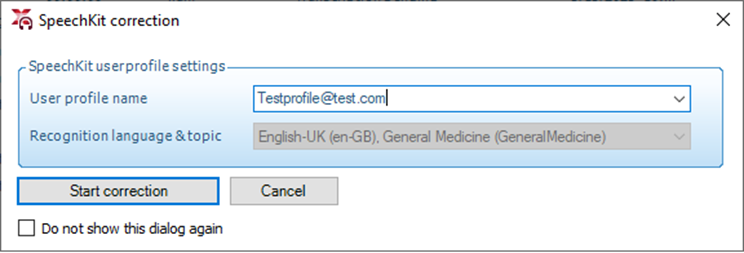
Once this profile has been defined they will be presented with the correction UI whereby they can undertake any necessary corrections. The Author’s profile will then retain the correction data and adapt over time becoming more accurate.
Note
Please note: dictations are only stored on the Nuance deferred correction server for 6 months. Therefore, customers, prospects and partners should be made aware of this.
Synchronize audio and text position
A further enhancement to the SpeechKit correction editor is the ability to synchronise the audio position with the text position within the correction editor. Previously this has not been possible when pausing the playback within the Recorder for the Authors or the Player for the Transcriptionists.
Author use case:
To access this feature as an Author they will need to click on the “New with speech recognition” button:

This will allow the Author to begin a speech recognition dictation. Within the author recorder UI the user will be presented with the SpeechKit bar, as they were in the previous version, however, this has been updated and now shows a play icon arrow.

The full recorder UI will be displayed like this:
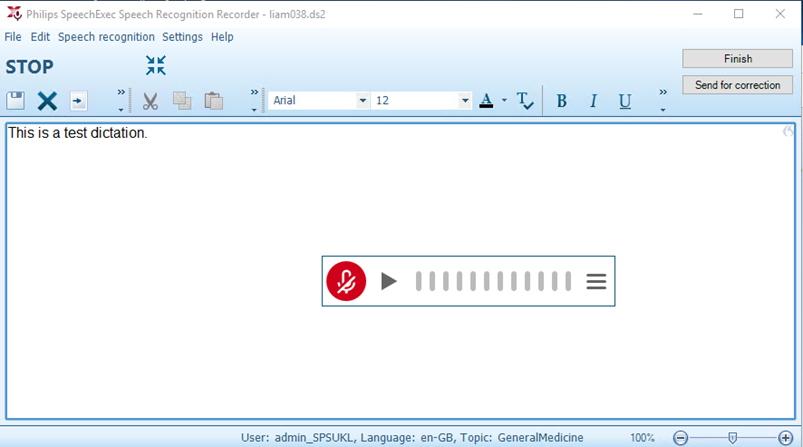
The author can now place their cursor anywhere within the transcribed text to play back the recording.Upon pausing the recording the cursor would show at the point of the text that matches the audio playback. The author would be able to either place the cursor at the end of the sentence or move by voice in order to continue dictating.Authors can also use Dragon formatting commands (for example, “delete that” or “scratch that”) to remove transcribed text. If they use these formatting commands, then the audio will match also. This means that the relevant snippet of audio is deleted from the recording/playback.
Transcriptionist use case:
To access this feature as a transcriptionist the transcriptionist will have to open a job that has a status of “Correction pending”. Upon opening the file they wish to correct, they will be presented with the new SpeechKit playback bar within the SEE correction editor:

The full correction editor UI will be presented like this:
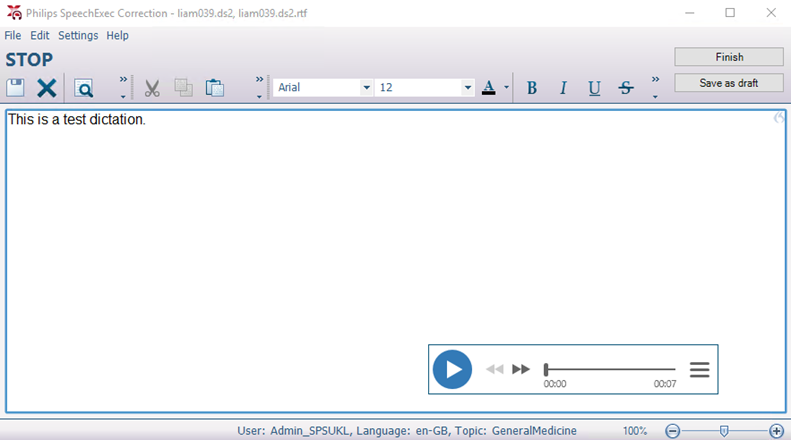
The transcriptionist can control the audio playback using their Philips ACC2300 foot control (play, fast forward and rewind). However, when the Transcriptionist pauses the playback the cursor does not update it’s location in the transcribed text. The synchronisation of the cursor and playback bar only occurs when the transcriptionist clicks to a point in the transcribed text. The SpeechKit playback bar then updates it’s position within the audio to match the location of the cursor in the Correction Editor UI; thus ensuring when the Transcriptionist begins playback the audio starts from the cursor position. Please see the screenshot below that illustrates this.
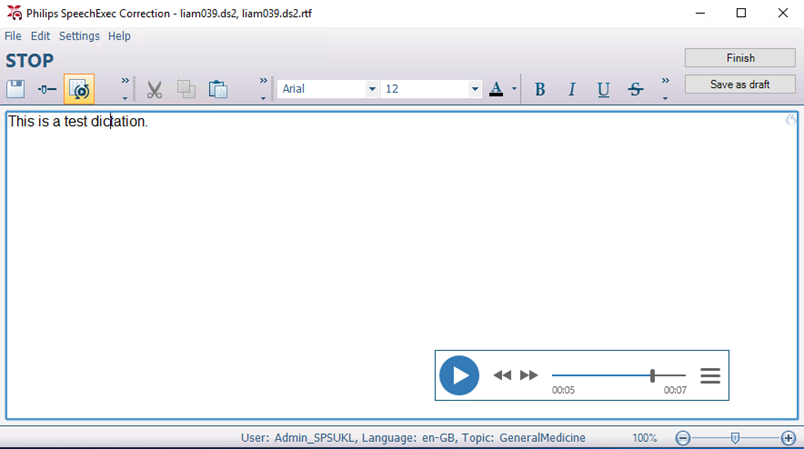
This playback functionality mimics the author functionality but adds rewind and fast forward support. The audio played back to the transcriptionist that the author has dictated will remove any Dragon formatting commands that were dictated or any audio that was deleted with Dragon formatting (for example, “delete that” or “scratch that”) commands by the author.
Imperfect audio playback
If the customer is not using SpeechKit hosted on a server that has the playback functionality enabled then they can still use the SEE solution but will need to utilize the “imperfect audio playback”. This imperfect audio will allow the transcriptionist to listen back and correct the transcribed text. However, the cursor would not synchronize with the audio position when pausing a dictation. Coupled with that, the author’s Dragon profile would not become more accurate from the corrections undertaken by the transcriptionist.When using the imperfect audio there is a different correction UI for the transcriptionists. The SpeechKit playback bar can be removed to show the “imperfect audio player”
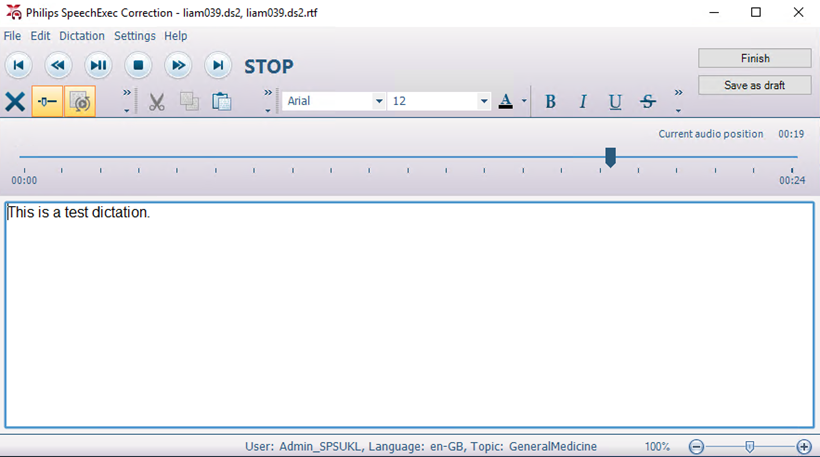
The imperfect audio also differs from the perfect audio in that any Dragon formatting commands (for example, “delete that” or “scratch that”) dictated are not removed from the audio, the same applies for any text an author removed via a Dragon formatting command. The original audio would still be played back to the transcriptionist even if the transcribed text is removed.
Note
If the site is not using the “playback” servers (currently Ordiginal and EGS hosted servers) then they will not be using the Dragon playback within the correction editor window. However, by default, the Dragon playback bar will display. This can display an error message about a license and topic error. See below screenshot:
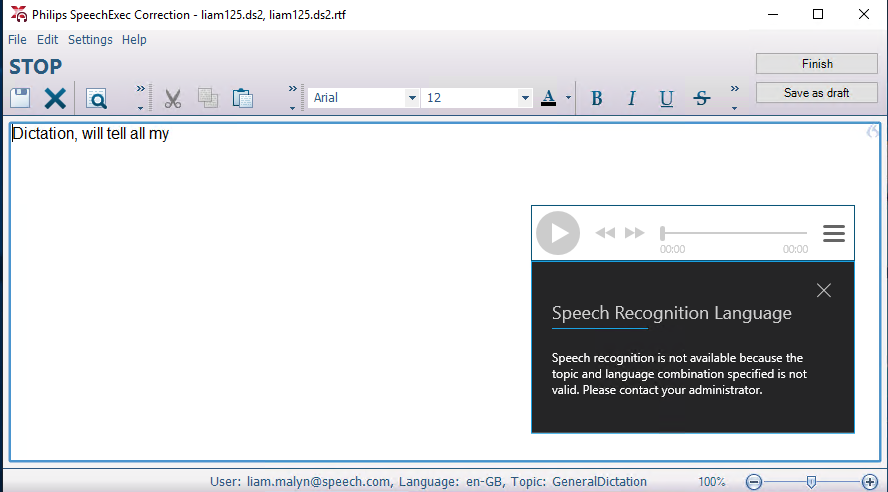
This is expected behaviour as the transcriptionist does not have a SpeechKit deferred correction license assigned in an NMC. As a result of this, and to access the imperfect audio, the transcriptionist will need to change the audio to the original. To do this they will need to select the “Listen to original sound of dictation file” via a button within the correction editor UI. (See screenshot below).
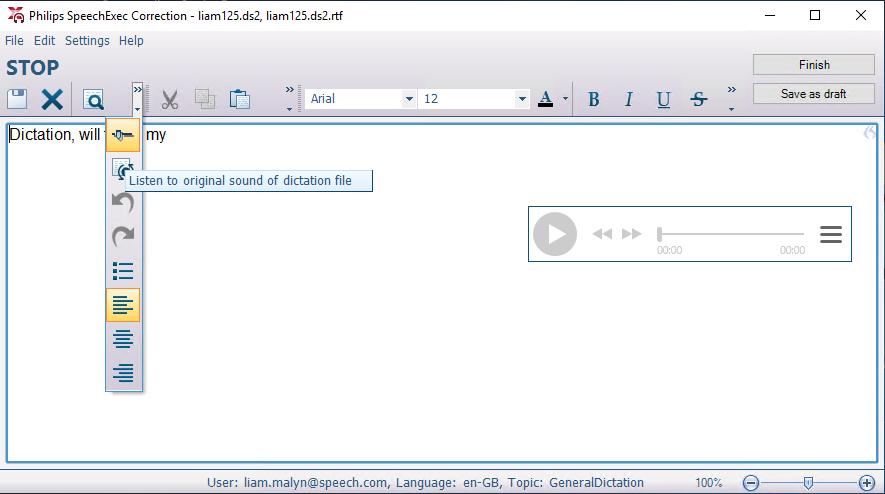
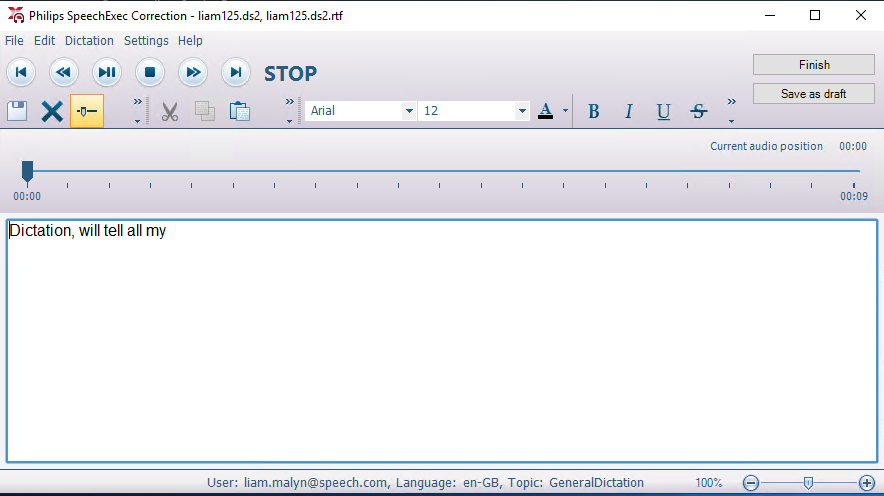
Once this option has been selected, the UI changes dynamically to the original audio playback bar and can be played back using the Philips footcontrol. This option can then be switched off again by clicking on the highlighted “Listen to original sound of dictation file” and the UI will revert back to the Dragon playback bar
Tip
*If a site updates the SpeechKit URLs in Enterprise Manager to the “playback URLs” (once released by Ordiginal and EGS) the original audio option and button can be disabled within the Enterprise Manager groups for the end users.
Dragon 16 Support
Nuance have recently (28th of February 2023) released DNS 16, which is the successor to DNS 15. As a result of this release, and our valued customer’s reliance on the SpeechExec compatibility and integration of DNS, we have implemented the compatibility of DNS 16 with our new versions of ED & ET. The compatibility of DNS 16 means that users can experience industry leading speech recognition accuracy within their SE ED & ET software. This compatibility allows end users to use real time online (front end) speech recognition through our inbuilt speech recognition user interface with the SE ED software. This compatibility also allows for offline (back end) speech recognition by processing a pre-recorded sound file through our SE ED, ET software or SR Server. These features will allow users to expedite document processing.
Support for RTF and TXT templates for SpeechKit online recognition
In order to make speech recognition even more efficient for authors we have now included the ability to define templates to be used with the SpeechKit SR. This feature is ideal for those authors who dictate documents where only certain parts of the document need to be amended.If an author has these template documents they can now be defined in the SEE settings to open when starting online speech recognition in the recorder UI. These templates can be defined via the “Rules” > “Templates” node within the SEE EM software:
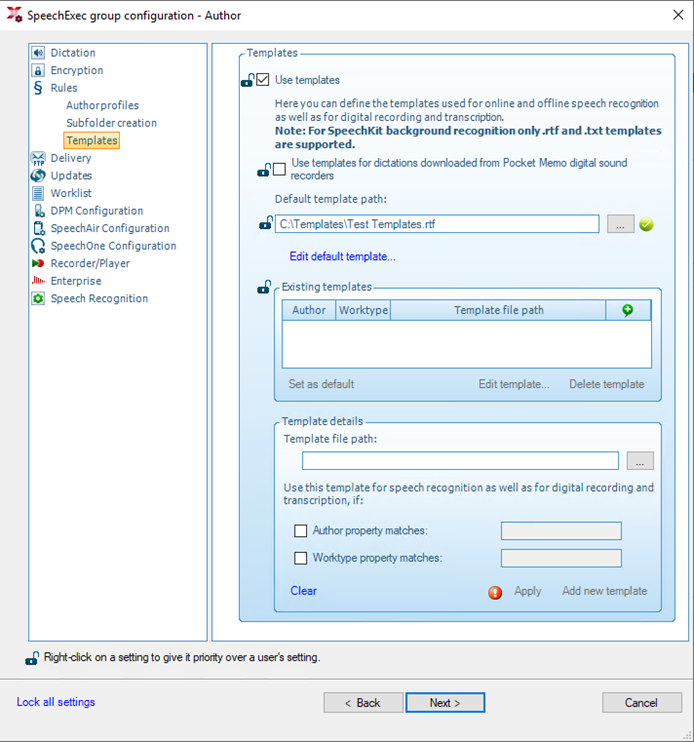
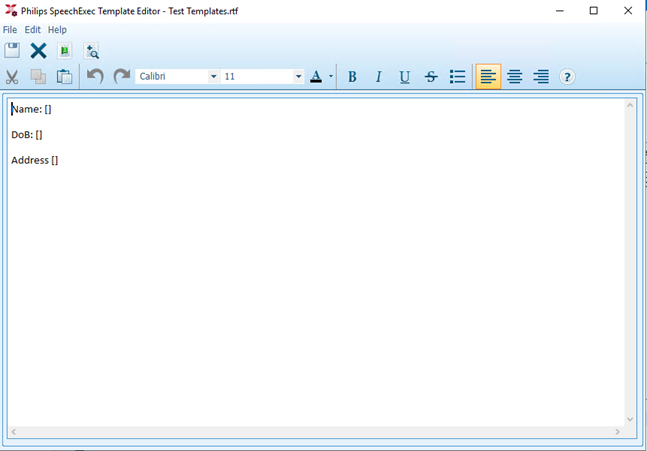
Once the template has been created you can configure it so it is tied to a worktype or an author value to facilitate the automatic opening of it.If you would like to make amends to an existing template then you can edit the template within the SEE EM options: “Edit default template” or by selecting an existing template and then clicking “Edit template”. The template editor then opens, as per below:
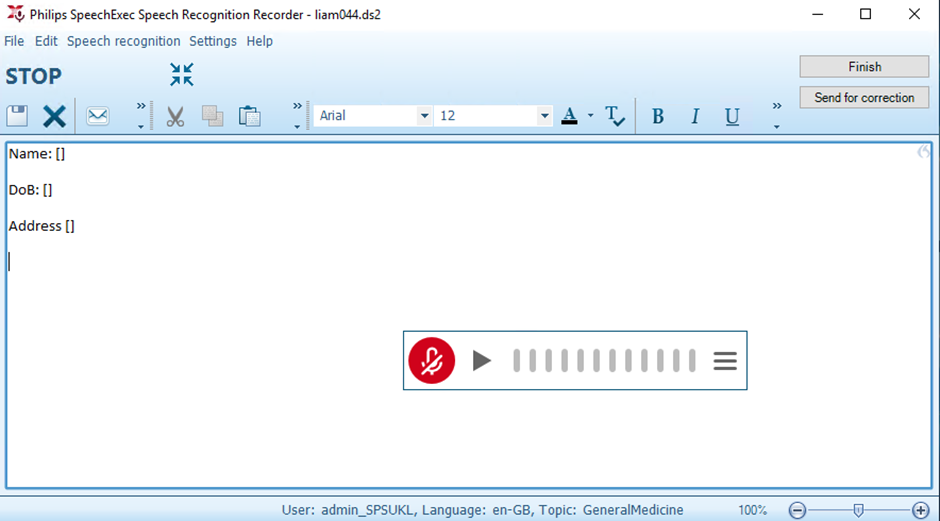
When calling up a template the template can either appear by default within the online recognition UI:
Or the template can be overwritten/opened up through the online recognition UI by clicking on this button:
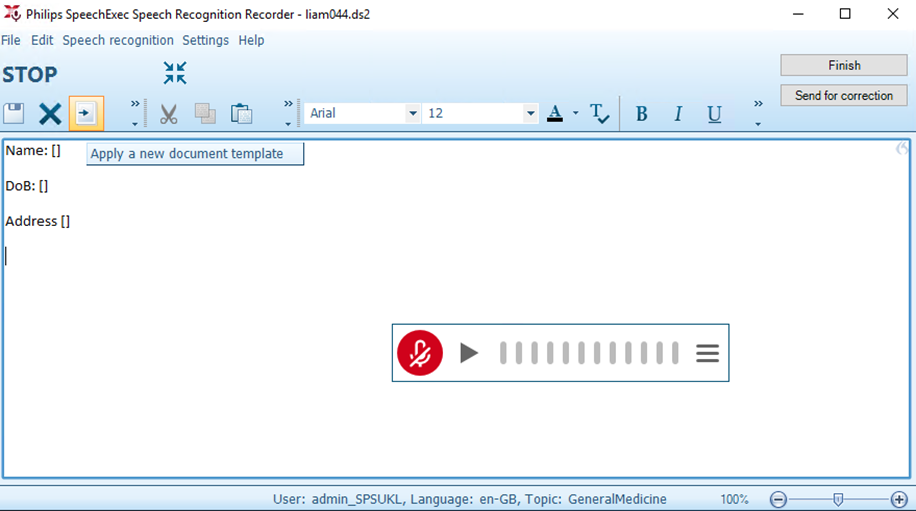
It would then overwrite the current document within the online recognition window.
Note
Please note: dictations are only stored on the Nuance deferred correction server for 6 months. Therefore, customers, prospects and partners should be made aware of this.
Further Enhancements
Improved the UI around Voice Activated recording level
Take over dictation functionality improved
Implementation of the latest Outlook Redemption
Improved SpeechKit organization token handling